

The most important network security best practices for Australian businesses are multi-factor authentication (MFA), tested backups, consistent patching, network segmentation, least-privilege access controls, and active monitoring with a documented incident response plan. These six controls, aligned with the ACSC Essential Eight, address the majority of the attack vectors that affect small and medium businesses right now. Australian businesses face frequent cyber attacks at short intervals, and a substantial proportion of businesses have experienced a cybercrime incident, with average incident costs running into significant financial amounts. That is not a theoretical risk for a 20-person firm in Brisbane.
Here is the prioritised action list to hand to your IT team or MSP today:
- Enable MFA on all accounts, starting with admin, email, and cloud services.
- Test your backups by actually restoring a file or system, not just checking that a job ran.
- Patch critical vulnerabilities within 48 hours of a confirmed exploit; everything else within two weeks.
- Segment your network so that a compromised laptop cannot reach your server or accounting system.
- Enforce least privilege so staff only access what their role requires, and admin accounts are separate.
- Deploy monitoring and logging so you know when something unusual happens, not weeks later.
- Document your network including a current diagram, internet-exposed services, and a contact list for incidents.
- Train staff with short, regular modules and simulated phishing tests at least quarterly.
- Review your incident response plan and confirm who calls whom when something goes wrong.
- Map your controls to the Essential Eight and identify your current maturity level so you can prioritise investment.
Key takeaways
The most important network security best practices for Australian SMBs are MFA, tested backups, consistent patching, network segmentation, least-privilege access, and active monitoring, all mapped to the ACSC Essential Eight for a structured prioritisation framework.
| Point | Details |
|---|---|
| MFA is the highest-impact first step | Enable MFA on all admin and cloud accounts before any other control; it stops the majority of credential-based attacks. |
| Test your backups, not just the job | A backup that has never been restored is unverified; schedule quarterly restore drills and an annual full-system test. |
| Patch critical exploits within 48 hours | Actively exploited vulnerabilities need immediate action; use ACSC alerts to stay informed and maintain a monthly routine cadence. |
| Segment your network by zone | Separate user, server, guest, and admin traffic using VLANs and firewall rules to limit how far an attacker can move. |
| Map controls to the Essential Eight | The ACSC Essential Eight gives a maturity model to prioritise investment and satisfy insurer and government customer requirements. |
| IT Start provides audits and managed security | IT Start offers security audits, MFA rollout, backup management, and ongoing monitoring for Brisbane SMBs of 10 to 50 staff. |
Table of Contents
- What are the three layers of network protection?
- How do you audit your network before doing anything else?
- Why does network segmentation matter for your business?
- What perimeter and remote access controls should you have in place?
- How do you roll out MFA and manage privileged access?
- What is the right patching cadence for your business?
- How do you harden network devices and wireless access points?
- Which encryption and protocol choices actually reduce your risk?
- Are your backups actually working?
- What monitoring and detection tools do SMBs actually need?
- How often should you run vulnerability scans and penetration tests?
- What should your incident response plan cover?
- How do you build a staff training programme that actually works?
- What Australian-specific guidance should you follow?
- What we actually see in Australian SMB networks, and how we fix it
- How IT Start helps Brisbane businesses implement these controls
- Sources
- FAQ
What are the three layers of network protection?
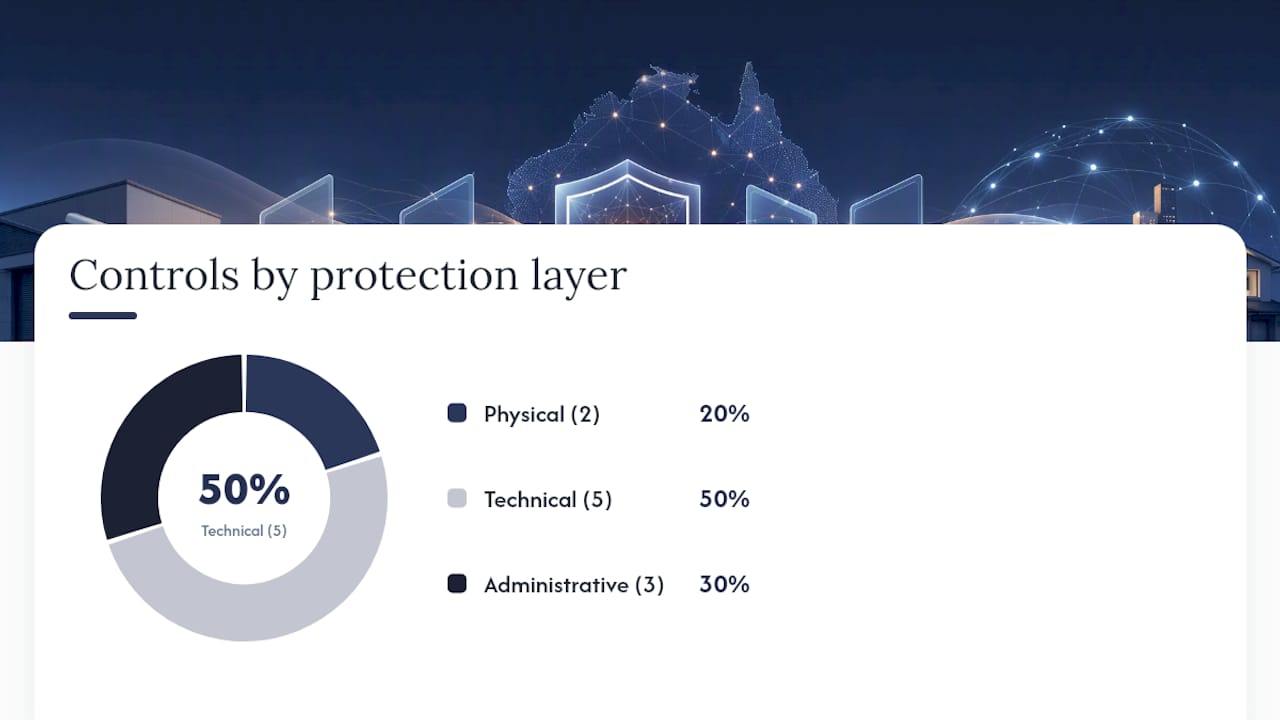
Network security does not live in a single firewall or a single policy. It works across three distinct layers, and a gap in any one of them undermines the others.
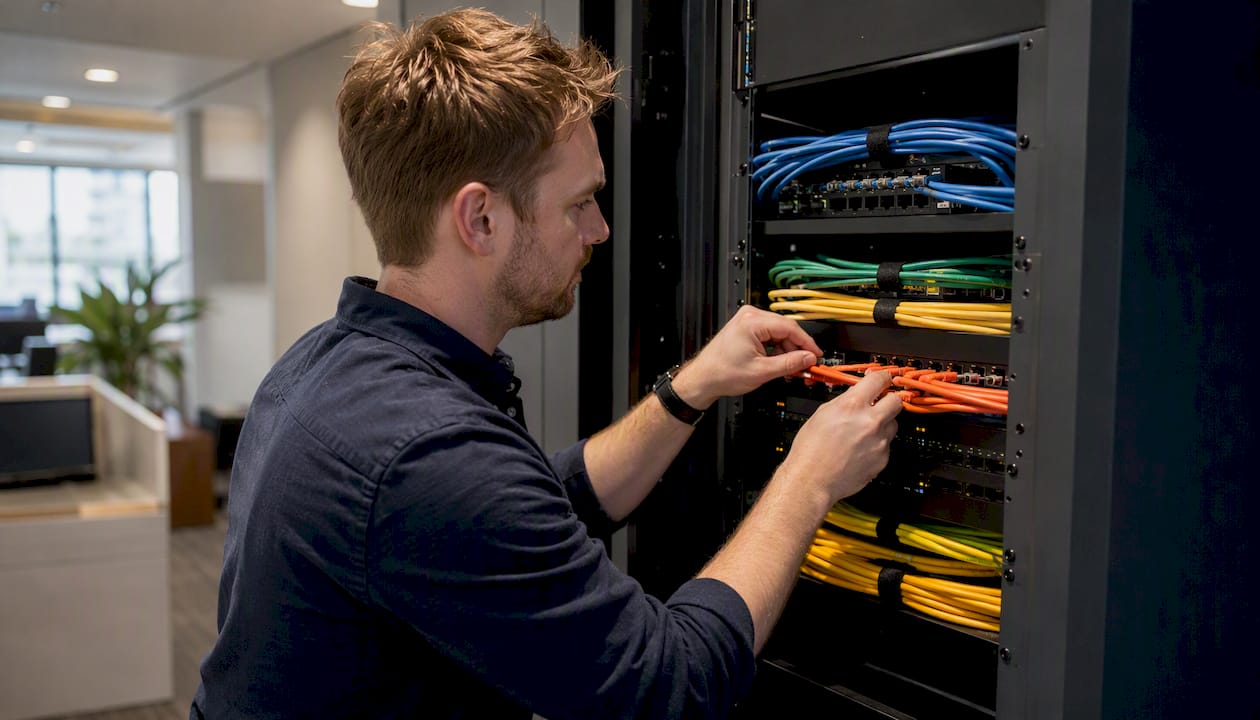
Physical layer covers the hardware itself: server room access, locked network cabinets, cable management, and preventing someone from plugging a device into your network without authorisation. Physical controls also include disabling unused switch ports and restricting USB access on workstations.
Technical layer is where most people focus, and rightly so. This includes firewalls, network segmentation, encryption, MFA, endpoint detection, patching, and monitoring. These are the controls that stop an attacker from moving through your environment once they are in.
Administrative layer is the one most SMBs underinvest in. Policies, procedures, training, access reviews, and vendor management all sit here. A technically perfect firewall means very little if a staff member hands over their credentials in a phishing email because no one ever trained them.
| Control | Layer | Who owns it | Typical quick-win timeframe |
|---|---|---|---|
| Server room lock and access log | Physical | Office/facilities manager | Week 1 |
| Disable unused switch ports | Physical | IT/MSP | Week 1 |
| Firewall rule review | Technical | IT/MSP | Week 1–2 |
| Network segmentation (VLANs) | Technical | IT/MSP | Month 1 |
| MFA on all accounts | Technical | IT/MSP | Week 1–2 |
| Patch management cadence | Technical | IT/MSP | Week 2 |
| Endpoint detection (EDR) | Technical | IT/MSP | Month 1 |
| Security policy documentation | Administrative | IT lead + management | Month 1–2 |
| Staff phishing training | Administrative | IT lead + HR | Month 1 |
| Vendor access review | Administrative | IT lead | Month 1 |
How do you audit your network before doing anything else?
Honestly, this is where most businesses should start, and almost none of them do. You cannot protect what you do not know you have. We regularly walk into SMB environments where no one can tell us how many servers they run, which services are exposed to the internet, or where their backups actually go.
A useful infrastructure audit covers:
- Network diagram: a current, accurate map of your switches, routers, firewalls, wireless access points, and how they connect.
- Internet-exposed services: every port and service reachable from outside your network, including remote desktop, VPNs, web applications, and cloud admin portals.
- Device inventory: every workstation, laptop, server, printer, and IoT device on the network, with OS version and patch status.
- Cloud tenants: Microsoft 365, Google Workspace, AWS, Azure, and any SaaS platforms your staff use, including shadow IT.
- Admin accounts: a full list of accounts with elevated privileges, including service accounts and shared credentials.
- Backup locations: where backups are stored, how often they run, when they were last tested, and whether they are offline or immutable.
Hand this list to your IT team or MSP and ask for a written report within two weeks. If they cannot produce it, that is itself a finding.
Pro Tip: A simple automated scan using a tool like Nmap or a managed vulnerability scanner, combined with a manual walkthrough of your cloud admin portals, uncovers the vast majority of surprises we find in SMB environments. The scan takes hours; the manual check takes a morning. Together they give you a defensible baseline.
Why does network segmentation matter for your business?
Segmentation is one of the highest-value controls you can implement, and it is consistently underused in SMBs. The idea is straightforward: if an attacker compromises one part of your network, segmentation limits how far they can move. Without it, a single infected laptop can reach your file server, your accounting system, and your backups in minutes.
Coarse segmentation uses VLANs to separate traffic into logical groups: user workstations, servers, guest Wi-Fi, management interfaces, and IoT devices. This is achievable on most business-grade switches and firewalls. The ACSC networking guidelines specifically note VLAN use and its caveats, including the risk of shared VLAN trunks between different security domains.
Microsegmentation goes further, applying policy-based or host-based controls that restrict traffic between individual workloads or applications, even within the same VLAN. This is more complex to implement and is typically a later-stage control for SMBs, but it is the direction enterprise security is moving.
A practical zone map for a 20-50 staff business looks like this:
- Internet zone: external traffic only, no direct access to internal resources.
- Guest Wi-Fi: isolated from all internal networks, internet access only.
- User LAN: staff workstations, with controlled access to file shares and business applications.
- Server zone: file servers, application servers, and databases, accessible only from the user LAN via specific ports.
- Admin/management zone: network device management interfaces, accessible only from a dedicated admin workstation or jump host.
Implementation steps: identify your high-value assets first, then build zones around them. Restrict east-west traffic (between internal zones) using access control lists on your firewall or managed switch. Test each zone boundary after implementation by attempting to reach a restricted resource from a workstation in a different zone.
Pro Tip: Never trunk VLANs from different security domains across the same physical link without explicit firewall inspection between them. We have seen “segmented” networks where the guest Wi-Fi VLAN and the server VLAN shared a trunk with no filtering, which defeats the entire purpose.
What perimeter and remote access controls should you have in place?
Your firewall is not a set-and-forget device. We see firewall rule sets in SMBs that have not been reviewed in years, with rules that allow traffic that no longer has a business purpose. A default-deny posture means all traffic is blocked unless explicitly permitted, and every permitted rule should have a documented reason and an owner.
Key perimeter controls to review:
- Firewall rule hygiene: remove or disable rules that are no longer needed; document the purpose of every remaining rule.
- Minimise internet-exposed services: every service exposed to the internet is an attack surface. Remote desktop should not be directly internet-facing. Use a VPN or Zero Trust gateway instead.
- Block anonymity network traffic: where your business has no legitimate need for Tor exit node traffic, block it at the perimeter.
- IDS/IPS placement: a network intrusion detection or prevention system sits inline or on a mirror port and alerts on or blocks known attack patterns. For SMBs, a next-generation firewall with built-in IPS is usually the practical choice over a separate appliance.
- Logging: every firewall and perimeter device should log connection attempts, denies, and alerts to a central location. Without logs, you have no visibility.
For remote access, the configuration checklist is:
- Disable default vendor accounts on VPN and firewall appliances.
- Force MFA on all remote access connections, including VPN.
- Restrict admin-level tunnels to named, approved source IPs where possible.
- Require modern protocols: TLS 1.2 or 1.3 for web-based access, IKEv2 or WireGuard for VPN.
- Audit who has remote access at least quarterly and remove accounts that are no longer needed.
Zero Trust is worth understanding as a direction rather than an immediate replacement. The principle is that no user or device is trusted by default, even inside the network, and access is granted based on verified identity, device health, and context. For most SMBs, the practical starting point is conditional access policies in Microsoft 365 or Azure Active Directory, which enforce MFA and device compliance checks before granting access to cloud resources.
How do you roll out MFA and manage privileged access?
MFA is the single highest-impact control for most SMBs, and it is still missing in a significant proportion of the businesses we work with. The ACSC small business guide specifically recommends enabling MFA as a priority step. Phishing and credential theft are the leading entry points for attackers, and MFA stops the majority of those attacks cold.
A staged rollout that works in practice:
- Week 1: Enable MFA for all global admin and IT admin accounts in Microsoft 365 or your identity platform. No exceptions.
- Week 2: Roll out MFA to all executive and finance staff. These accounts are the highest-value targets for business email compromise.
- Week 3–4: Extend MFA to all remaining staff accounts, with a brief communication explaining why and how to set it up.
- Month 2: Review service accounts and shared mailboxes. These often get missed and are a common attack path.
Least privilege means every user account has only the permissions their role requires, and nothing more. In practice, this means your receptionist should not have local admin rights on their workstation, and your accountant should not have access to the HR file share. Conduct an access review at least annually, and whenever someone changes roles or leaves.
Privileged access management goes further: admin accounts should be separate from day-to-day user accounts. Your IT administrator should have a standard account for email and browsing, and a separate admin account used only for administrative tasks. Just-in-time elevation, where admin rights are granted for a specific task and then revoked, is the next step for organisations with more mature controls.
Pro Tip: Phishing-resistant MFA methods, such as FIDO2 hardware keys (YubiKey, for example) or passkeys, are significantly harder to bypass than SMS or authenticator app codes. For administrator accounts, phishing-resistant MFA should be the standard once your organisation is ready to implement it.
What is the right patching cadence for your business?
Patching is unglamorous, but unpatched systems are one of the most common entry points in real incidents. The challenge for SMBs is not knowing that patching matters; it is having a consistent process that does not fall apart when the IT person is on leave.
A practical patching timeline:
- Critical, actively exploited vulnerabilities: patch or mitigate within 48 hours of a confirmed exploit being published. Subscribe to the ACSC alert service at cyber.gov.au so you hear about these quickly.
- High-severity vulnerabilities (CVSS 7.0 and above): patch within two weeks. This covers the majority of serious risks without requiring emergency change processes every week.
- Routine patches (OS, applications, firmware): monthly cadence, aligned with Microsoft Patch Tuesday where relevant.
- End-of-life software and hardware: document it, plan replacement, and apply compensating controls (network isolation, enhanced monitoring) until replacement occurs.
Vulnerability scanning turns patching from a guess into a prioritised queue. Run an authenticated scan against your environment at least quarterly, and after any major change. The scan output gives you a list of findings ranked by severity, which you can assign to owners with deadlines.
A simple priority matrix:
| Asset criticality | Critical exploit | High severity | Routine |
|---|---|---|---|
| High (servers, domain controllers) | 48 hours | 7 days | Monthly |
| Medium (workstations, laptops) | 48 hours | 14 days | Monthly |
| Low (printers, IoT) | 7 days | 30 days | Quarterly |
How do you harden network devices and wireless access points?
Default credentials on routers, switches, and wireless access points are one of the most avoidable exposures we see. Manufacturers ship devices with well-known default usernames and passwords, and a surprising number of businesses never change them. An attacker with access to your network, or sometimes just your guest Wi-Fi, can find and log into these devices in minutes.
Immediate device hardening actions:
- Change default credentials on every network device, including routers, switches, firewalls, wireless access points, and printers.
- Disable unused physical ports on switches. A port that is not in use should not be active.
- Restrict management interfaces to the admin VLAN only. Your router’s web interface should not be reachable from the user LAN or the internet.
- Apply firmware updates to network devices on the same cadence as your server and workstation patches. Firmware vulnerabilities are real and frequently exploited.
- Disable WPS (Wi-Fi Protected Setup) on all access points. It has known vulnerabilities and serves no useful purpose in a business environment.
For Wi-Fi specifically: use WPA3 where your hardware supports it; WPA2-AES is acceptable where WPA3 is not available. Isolate guest networks so that guest devices cannot reach any internal resources. Never run an open (no password) wireless network in a business environment.
Pro Tip: Keep a configuration backup for every network device, stored securely off the device itself. After an incident or a failed firmware update, being able to restore a known-good configuration cuts recovery time from hours to minutes. Document your standard baseline configuration so new devices are built consistently.
For further guidance on hardening network administration tasks, the IT Start network security admin guide covers device-level checks specific to Brisbane SMB environments.
Which encryption and protocol choices actually reduce your risk?
Not all encryption decisions carry equal weight. Some protocol upgrades are high-value and straightforward; others are theoretical improvements that create more operational complexity than they remove.
High-value protocol controls to prioritise:
- TLS 1.2 or 1.3 for all web services: any web application or admin portal your business runs should use a valid certificate and enforce HTTPS. Disable TLS 1.0 and 1.1 on all servers and load balancers.
- Encrypted DNS (DoH or DoT): DNS over HTTPS or DNS over TLS encrypts DNS queries so they cannot be intercepted or manipulated in transit. The ACSC networking guidelines recommend enabling encrypted DNS where supported. Protective DNS services also block known malicious domains at the resolver level, which is a useful detection and prevention layer.
- VPNs with modern ciphers: if you run a VPN for remote access, confirm it uses IKEv2 or WireGuard with AES-256 encryption. Avoid PPTP and L2TP without IPsec; both are considered insecure.
- Internal link encryption: for high-sensitivity environments, encrypting traffic between internal servers (using IPsec or application-level TLS) limits the damage from an attacker who has already gained internal network access.
Legacy protocols without encrypted equivalents, such as older SCADA or industrial control system protocols, require a different approach. Isolate those systems on a dedicated VLAN with strict access controls and enhanced monitoring, and plan for replacement where the vendor roadmap allows.
Certificate management is worth a brief mention. Self-signed certificates create alert fatigue because browsers and applications warn about them constantly, and staff learn to click through warnings. Use a trusted certificate authority, automate renewal where possible (Let’s Encrypt works for public-facing services), and maintain an inventory of certificates with their expiry dates.
For guidance on protecting sensitive data in transit and at rest, the IT Start data protection guide for Brisbane SMEs covers practical encryption choices for professional services firms.
Are your backups actually working?
This is the question we ask every new client, and the honest answer is usually “we think so.” We see this a lot: a backup job that has been running for months with errors that no one noticed, or a cloud sync that backs up files but not the system state, or a backup that is stored on the same server it is protecting. None of those are real backups.

The 3-2-1 rule is the starting point: three copies of your data, on two different media types, with one copy stored offsite or offline. For ransomware resilience, that offline or immutable copy is the critical piece. Ransomware will encrypt anything it can reach, including network shares and cloud sync folders. An immutable backup, where the data cannot be modified or deleted for a defined retention period, survives that.
Backup policy checklist:
- Recovery Point Objective (RPO): how much data can you afford to lose? For most businesses, the answer is less than 24 hours, which means daily backups at minimum.
- Recovery Time Objective (RTO): how long can you afford to be without a system? This drives decisions about backup type (file-level versus image-level) and restore infrastructure.
- Ownership: who is responsible for monitoring backup jobs, responding to failures, and scheduling restore tests?
- Encryption: backups should be encrypted at rest and in transit. An unencrypted backup of your client data is a data breach waiting to happen.
- Retention: keep enough history to recover from a ransomware infection that went undetected for several weeks. Thirty days of daily backups is a reasonable minimum for most SMBs.
- Restore testing: schedule a restore drill at least quarterly. Test a full system restore at least annually. If you have never tested a restore, you do not have a backup; you have a backup job.
For businesses using cloud services, the IT Start cloud and migration resources cover backup considerations for Microsoft 365 and other cloud tenants, where the platform’s built-in retention is often not sufficient on its own.
What monitoring and detection tools do SMBs actually need?
Detection is where a lot of SMBs have a genuine gap. They have a firewall and an antivirus, and they assume that is enough. It is not. Antivirus catches known malware signatures. It does not catch an attacker who has logged in with valid credentials, or a compromised account that is slowly exfiltrating data.
The four tool categories worth understanding:
- SIEM (Security Information and Event Management): collects and correlates logs from across your environment, firewalls, servers, identity platforms, and applications, and alerts on patterns that suggest an attack. For SMBs, Microsoft Sentinel or a managed SIEM service is more practical than building your own.
- EDR (Endpoint Detection and Response): monitors endpoint behaviour in real time and can detect and contain threats that bypass signature-based antivirus. Microsoft Defender for Endpoint is the most common choice in Microsoft 365 environments.
- NIDS (Network Intrusion Detection System): monitors network traffic for anomalies and known attack patterns. Useful for detecting lateral movement and command-and-control traffic that endpoint tools might miss.
- Protective DNS: a DNS resolver that blocks queries to known malicious domains. The ACSC networking guidelines note that protective DNS services can block malicious lookups and provide event logs useful for post-incident investigations.
Minimum logging events to capture from network devices and internet-facing services:
- Authentication events: successful and failed logins, MFA prompts, and account lockouts.
- Firewall connection logs: allowed and denied connections, especially on internet-facing interfaces.
- DNS query logs: particularly useful for detecting command-and-control traffic and data exfiltration.
- Admin account activity: any action taken by a privileged account should be logged.
- VPN connection logs: who connected, from where, and when.
Retain logs for at least 90 days. Many investigations require logs from weeks before the incident was detected. SANS provides policy templates for log retention and security documentation that organisations can adapt.
How often should you run vulnerability scans and penetration tests?
Automated scans and penetration tests serve different purposes, and confusing them leads to either over-spending or under-testing. A vulnerability scan identifies known weaknesses in your systems. A penetration test has a human attacker attempting to exploit those weaknesses to see how far they can get.
| Activity | Frequency | Who runs it | What it finds |
|---|---|---|---|
| Automated vulnerability scan (unauthenticated) | Weekly | IT/MSP or automated tool | Internet-exposed services, open ports, known CVEs |
| Authenticated vulnerability scan | Quarterly | IT/MSP | Internal misconfigurations, patch gaps, credential issues |
| Penetration test | Annual or after major change | External specialist | Exploitable chains, business logic flaws, detection gaps |
| Red team engagement | Every 2–3 years (larger orgs) | External specialist | Full attack simulation including social engineering |
When selecting a penetration testing provider, ask for:
- A written scope document before work begins, specifying what is in and out of scope.
- A signed non-disclosure agreement.
- A sample report from a previous engagement (redacted) so you can assess the quality of findings and remediation guidance.
- Confirmation that they will coordinate testing with your maintenance windows and that you have a backup in place before testing begins.
Schedule penetration tests outside of your busiest business periods, and always take a verified backup immediately before the test window opens.
What should your incident response plan cover?
Most SMBs have no documented incident response plan. When something goes wrong, they are making decisions under pressure with no agreed process, no clear roles, and often no current network diagram to work from. That is when mistakes happen.
The should-have pieces for a network-focused incident response plan:
- Current network diagram: updated within the last 90 days, showing all zones, internet-facing services, and critical systems.
- Contact list: IT lead, MSP emergency line, cyber insurance provider, legal counsel, and the ACSC’s Australian Cyber Security Hotline (1300 CYBER1).
- Decision roles: who declares an incident, who authorises containment actions (such as taking systems offline), and who communicates with staff and customers.
- Containment checklist: isolate affected systems, preserve logs, change compromised credentials, notify relevant parties.
- Recovery priorities: which systems must come back first, and in what order.
First 24 hours checklist:
- Identify and isolate affected systems (IT lead).
- Preserve logs and take forensic snapshots before remediation (IT lead/MSP).
- Change all potentially compromised credentials (IT lead).
- Notify cyber insurer and legal counsel (executive).
- Assess whether a notifiable data breach has occurred under the Privacy Act (executive/legal).
- Communicate internally with staff (executive/comms lead).
- Begin recovery from clean backups (IT lead/MSP).
Exercise plan: run a tabletop exercise quarterly, where the team walks through a scenario (ransomware, credential theft, data exfiltration) and identifies gaps in the plan. Conduct a simulated restore annually to confirm your backup and recovery process actually works. Every two years, stress-test your supplier chain by asking key vendors for their own incident response documentation.
How do you build a staff training programme that actually works?
Staff are the most common entry point for attacks, and also the most underinvested control. A once-a-year compliance video does not change behaviour. Short, regular training modules and simulated phishing tests do.
A realistic training cadence:
- Monthly micro-modules: 5-10 minute modules covering one topic, such as spotting phishing emails, safe password practices, or how to report a suspicious file. Platforms like KnowBe4 or Proofpoint Security Awareness Training make this manageable.
- Quarterly simulated phishing tests: send simulated phishing emails to staff and track click rates. Use the results to identify who needs additional training, not to punish people. The Total Cyber Academy threat guide outlines the threat types that staff awareness programmes should cover.
- Role-specific training: finance staff need training on business email compromise and invoice fraud. IT administrators need training on social engineering and pretexting. Executives need training on targeted spear-phishing.
For guidance on designing a training programme for your team, the IT Start staff cybersecurity training guide covers simulated phishing and reporting flows for SMBs.
Reporting flow: make it easy for staff to report suspicious activity. A dedicated email address (security@yourcompany.com.au), a Teams or Slack channel, or a button in your email client all work. The key is that staff know where to go and feel safe reporting without fear of blame.
Immediate staff actions on suspected compromise:
- Do not click anything further or try to fix it yourself.
- Disconnect the device from the network if safe to do so.
- Report immediately to IT or the MSP using the agreed channel.
- Do not delete emails or files that may be evidence.
- Notify your manager if the incident involves client data or financial accounts.
What Australian-specific guidance should you follow?
The ACSC Essential Eight is the Australian government’s recommended baseline of eight mitigation strategies: application control, patch applications, configure Microsoft Office macro settings, user application hardening, restrict administrative privileges, patch operating systems, multi-factor authentication, and regular backups. Each control has a maturity model from level 0 (not implemented) to level 3 (fully implemented), which gives you a structured way to prioritise investment.
The controls in this article map directly to the Essential Eight. MFA, patching, backups, and restricting admin privileges are four of the eight. If you implement those four well, you are already at a meaningful maturity level for most of the framework.
When will suppliers or government customers ask for evidence? Increasingly, government contracts and larger enterprise clients require evidence of Essential Eight compliance or equivalent controls. Cyber insurers are also asking more detailed questions about MFA, patching cadence, and backup testing before issuing or renewing policies. Having documented evidence of your controls is not just good practice; it is becoming a commercial requirement.
The ACSC small business guide is the most practical starting point for SMBs. It is free, written in plain language, and covers the same controls this article recommends.
Statistic worth noting: RSM Australia’s 2026 Cyber Security Report found that a very high share of business leaders express confidence in their ability to protect sensitive customer data, while a notable minority of organisations reported a breach in the prior 12 months. That gap between confidence and reality is exactly why objective testing and independent assurance matter. Feeling secure and being secure are two different things.
Supplier risk management is an area many SMBs overlook. Your security is only as strong as the weakest link in your supply chain. Ask your key suppliers for evidence of their security controls, particularly any vendor with access to your systems or data. AI-enabled adversary activity and cloud-targeted intrusions are increasing quickly, which makes supplier scrutiny a current, not future, priority.
What we actually see in Australian SMB networks, and how we fix it
Honestly, the gap between what businesses think their security looks like and what it actually looks like is significant. We walk into environments regularly where the owner is confident they are covered, and within an hour we have found no MFA on admin accounts, a backup that has not been tested in over a year, and cloud admin portals with shared credentials that three people know.
The most common problems we find in 10-50 staff organisations:
No MFA on admin accounts. This is the one that keeps us up at night. A single phished admin credential gives an attacker full control of your Microsoft 365 tenant, your email, your SharePoint, and often your Azure environment. It takes about 20 minutes to enable MFA for admin accounts. There is no good reason not to do it today.
Backups that are not actually backups. We see this constantly. A business thinks they are backed up because Microsoft 365 keeps deleted items for 30 days, or because their server has a local backup drive attached to it. Neither of those is a real backup for ransomware recovery. The local drive gets encrypted along with everything else. The 30-day retention does not cover a full system restore. We fix this by implementing a proper 3-2-1 backup with an immutable offsite copy, and then we test it.
Messy admin accounts. Shared admin credentials, former employees with active accounts, and service accounts with domain admin rights that were set up years ago and never reviewed. We audit every privileged account, remove what should not be there, and document what remains.
Unmanaged cloud tenants. Staff sign up for SaaS tools without IT involvement, and those tools end up with access to company data and no security controls. A cloud tenant audit is usually an eye-opener.
The order we apply fixes for a typical new client: MFA first, backup verification second, admin account audit third, then patching and monitoring. That sequence addresses the highest-probability, highest-impact risks before moving to the more complex controls. For most 10-50 staff businesses, the first 30 days of focused work produces a meaningful reduction in risk.
Cost versus risk is a real conversation. Not every business needs a full SIEM and a 24/7 SOC. But every business needs MFA, tested backups, and a patching process. Those three controls are low-cost relative to the cost of an incident, and they address the majority of the attack vectors we see in practice. When the controls get more complex, that is when calling an MSP makes more sense than trying to manage it internally with a part-time IT person.
For a more detailed look at how these issues play out in Brisbane professional services firms, the IT Start network security practices guide for Brisbane covers local examples and common scenarios.
How IT Start helps Brisbane businesses implement these controls
IT Start works with Brisbane SMBs that are at exactly the stage this article describes: they know they need to improve their security, they are not sure where to start, and they do not have the internal capacity to manage it all. The starting point is always an audit, not a sales pitch.
What an engagement with IT Start looks like:
- Security audit: a review of your current environment covering the controls in this article, with a written report and a prioritised remediation list.
- Managed cyber security: ongoing monitoring, patching, backup management, and incident response support through IT Start’s managed cyber security service.
- Microsoft 365 security configuration: MFA, conditional access, Defender for Endpoint, and secure baseline configuration for your Microsoft 365 tenant.
- Backup and recovery: implementation and monitoring of a 3-2-1 backup strategy with tested restores and immutable offsite copies.
- Fixed-scope quick wins: for businesses that want to address the highest-risk items first without a long-term commitment, IT Start offers scoped engagements covering MFA rollout, backup verification, and admin account audit.
If you want to know where your business actually stands against the Essential Eight and the controls in this article, book a security assessment with IT Start and get a clear picture within two weeks.
Sources
These are the references worth bookmarking if you are making the case for investment or working through implementation with your team:
- 2026 Cyber Security Report Australia | RSM Australia
- Cyber
- Cybercrime costs surge as Australian businesses face an attack every six minutes | Tech Business News
FAQ
What are the most important network security controls for a small business?
MFA, tested backups, and consistent patching are the three highest-impact controls for most small businesses, as recommended by both the ACSC Essential Eight and the ACSC Small Business Cyber Security Guide. These three address the majority of the attack vectors that affect SMBs.
How often should you test your backups?
Restore drills should run at least quarterly for critical files and systems, with a full system restore test at least once a year. A backup job that has never been tested is not a verified backup.
What is the ACSC Essential Eight?
The Essential Eight is the Australian government’s recommended baseline of eight cybersecurity controls, published by the Australian Signals Directorate. It includes MFA, patching, application control, and regular backups, each with a maturity model from level 0 to level 3.
How do you know if your network has been compromised?
Centralised logging, EDR on endpoints, and protective DNS are the detection layers most likely to surface an intrusion early. Without these, many SMBs discover a compromise weeks after it occurred, often through a third party rather than their own monitoring.
When should a small business call an MSP for network security help?
Call an MSP when your internal IT capacity cannot maintain MFA, patching, backup testing, and monitoring consistently, or when you need an objective audit of your current controls. IT Start offers security assessments and managed security services for Brisbane businesses with 10 to 50 staff.