

TL;DR:
- Most small businesses and households risk security breaches due to router misconfigurations that leave default settings active.
- Secure your network by changing default credentials, enabling strong encryption, and segmenting devices to prevent lateral movement.
- Ongoing maintenance, like firmware updates and device monitoring, is essential to protect against evolving threats and hardware vulnerabilities.
Most small business owners and households are one router misconfiguration away from a serious breach. If you’re asking how to secure my internet, you’re already ahead of the majority who never think about it until something goes wrong. The risks are real: credential theft, malware infections, and full network compromise can all trace back to a router still running factory default settings. This guide covers exactly what network security hardening looks like in practice, from the tools you need before you start, through to what to do when things go wrong.
Table of Contents
- Key takeaways
- What you need before securing your connection
- Securing your router and Wi-Fi network step by step
- Advanced protection and ongoing maintenance
- Common mistakes that undo all your hard work
- My honest take after years working with Brisbane SMBs
- How IT Start helps Brisbane businesses stay protected
- FAQ
Key takeaways
| Point | Details |
|---|---|
| Change default credentials first | Factory admin usernames and passwords are the number one entry point attackers exploit. |
| Enable WPA3 or WPA2-AES | Outdated encryption like WEP leaves your wireless traffic readable by anyone nearby. |
| Segment your network | Separate IoT and guest devices so one compromised gadget cannot reach your business data. |
| Disable risky router features | Turning off WPS, remote management, and UPnP removes commonly exploited attack paths. |
| Security is ongoing, not once-off | Firmware updates, device audits, and scheduled checks are what actually keep you protected. |
What you need before securing your connection
Before you change a single setting, get your tools and information in order. This part is unglamorous but skipping it is why people get locked out of their own routers or create new problems while fixing old ones.
You’ll need the following to get started:
- Router admin access. Find your router’s IP address (commonly "192.168.0.1
or192.168.1.1`) and the default login credentials from the label on the back of the device or the manufacturer’s manual. - A password manager. You will be creating strong, unique passwords for both the admin panel and your Wi-Fi network. Writing them on a sticky note defeats the purpose. A good password manager stores them securely and auto-fills when needed.
- A network scanning app. Tools like Fing or your router’s built-in device list let you see exactly what is connected. You need to know your network before you lock it down.
- Firmware update access. Check your router manufacturer’s website to see if there is a current firmware version available, and whether automatic updates are supported.
- A clear picture of your network layout. Know which devices are on your main network versus any existing guest network. This matters when we get to segmentation.
The whole process takes around one to two hours for a typical small office or home setup. Block it out properly.
Pro Tip: Write down your new admin credentials and store them somewhere physically secure before you log out of the router admin panel. More than a few clients have been locked out because they saved the new password only in a browser that then lost it.
Securing your router and Wi-Fi network step by step
This is the core of home network security best practices, and it is where most people either do nothing or do the bare minimum. Here is how to do it properly.
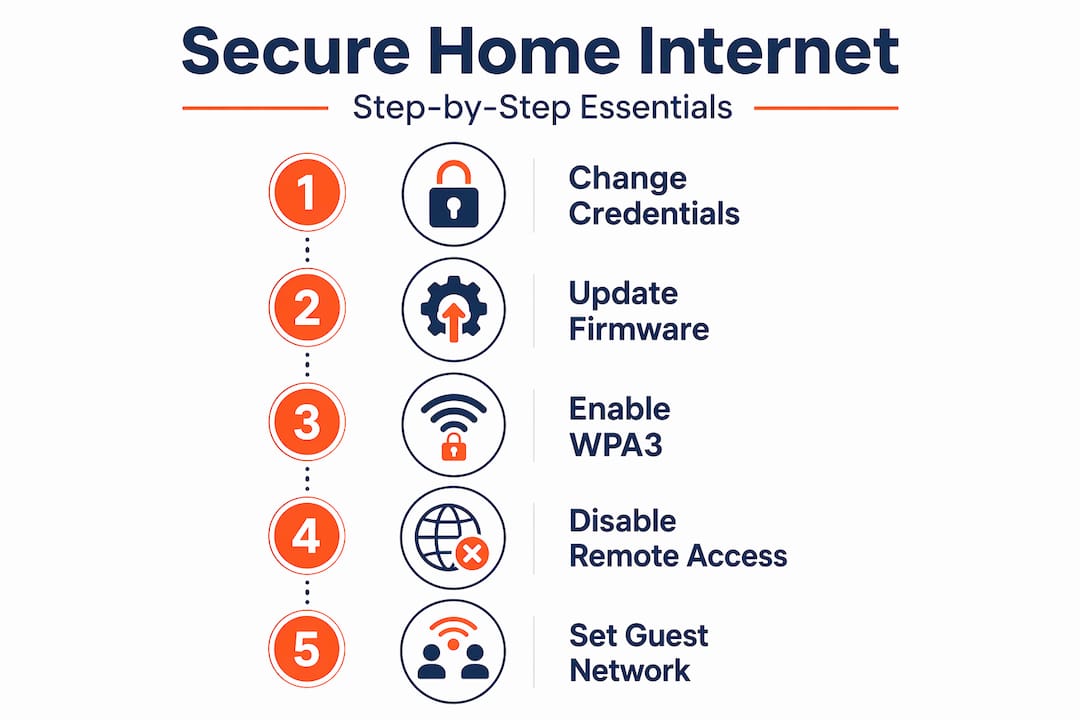
1. Change default admin credentials immediately.
Factory default passwords are publicly documented. Any attacker can look them up in seconds. Use a password that is at least 16 characters, ideally random. The FBI recommends a range of 16 to 64 characters for both the admin panel and your Wi-Fi passphrase.
2. Update router firmware.
Log in to the admin panel, find the firmware update section, and install any available updates. If automatic updates are available, turn them on. Outdated firmware is how known vulnerabilities become open doors.
3. Set your Wi-Fi encryption to WPA3 or WPA2-AES.
WPA3 encryption is the current standard and should be your first choice. If your devices do not support it, WPA2 with AES mode is acceptable. WEP and TKIP are not acceptable. Full stop. They offer effectively no protection against modern attacks.
4. Disable remote management, WPS, and UPnP.
These three features are commonly exploited by attackers to gain persistent access. Remote management lets someone configure your router from outside your network. WPS has known brute-force vulnerabilities. UPnP can be manipulated by malware to open ports without your knowledge. Turn all three off.
5. Enable the router’s built-in firewall.
Most routers include a Stateful Packet Inspection (SPI) firewall. Enabling SPI blocks unsolicited incoming connections before they reach your devices. Check your router’s security settings page and make sure this is active.
6. Set up a guest network and separate your IoT devices.
Network segmentation keeps your smart TV, printer, or security camera on a separate network from your laptops and phones. If one of those IoT devices gets compromised, the attacker cannot move sideways to your sensitive data. This is called limiting lateral movement, and it is one of the most effective containment measures available to small businesses.
7. Change your SSID to something neutral.
Do not broadcast your name, address, or business name in your Wi-Fi network name. A neutral SSID like “Network5G” gives attackers no useful information.
8. Adjust router placement.
A centrally located router reduces the need for extenders or open access points that create new vulnerabilities. If coverage is the issue, look at a quality mesh system rather than adding insecure range extenders.
Here is a quick reference for Wi-Fi encryption options:
| Encryption type | Security level | Recommended? |
|---|---|---|
| WPA3 | High (current standard) | Yes, preferred |
| WPA2-AES | Good (acceptable fallback) | Yes, if WPA3 unavailable |
| WPA2-TKIP | Weak | No |
| WEP | Very weak (easily cracked) | No |
| Open (none) | None | Never |
Pro Tip: After making all your changes, do a quick walk-through of the router admin panel from top to bottom. Manufacturers sometimes bury risky features like remote access or cloud management under menus labelled something innocuous. Find them before an attacker does.
Advanced protection and ongoing maintenance
Securing your internet connection is not a one-time project. The threats evolve, firmware patches drop, and your device inventory changes. Here is what ongoing protection actually looks like.
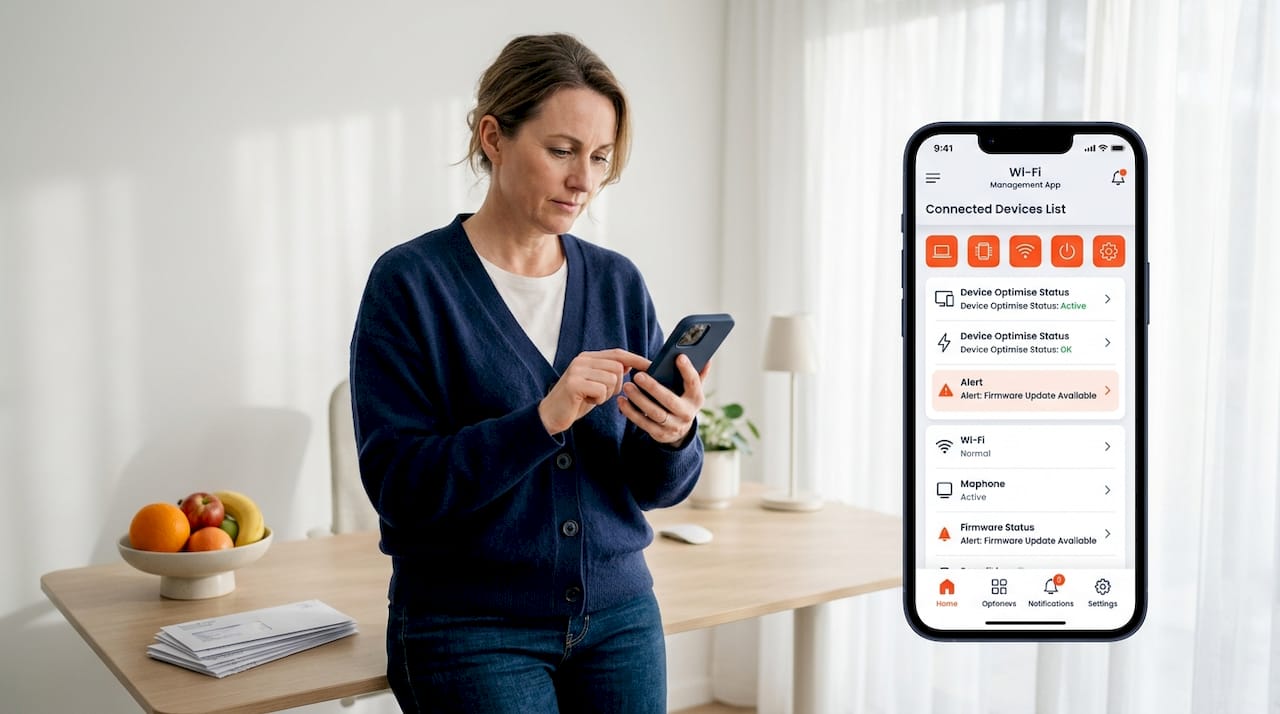
Monitor your connected device list regularly. Log in to your router admin panel at least monthly and check the list of connected devices. Unknown devices are a red flag. If you spot something you do not recognise, investigate before assuming it is harmless.
Reboot your router periodically. This sounds too simple to matter, but router reboots clear in-memory malware that may have loaded without touching the firmware. The FBI specifically recommends this as an incident response step if compromise is suspected.
Set up encrypted DNS. Your internet service provider can see every domain you query by default. DNS-over-HTTPS prevents ISPs and attackers from monitoring your DNS lookups. Services like Cloudflare (1.1.1.1) and Quad9 offer free encrypted DNS that can be configured directly in your router or on individual devices.
Use a VPN on public Wi-Fi. Cafe and hotel Wi-Fi is a risk regardless of how secure your home network is. A VPN encrypts your traffic between your device and the VPN server, preventing eavesdropping on untrusted networks. Make sure your staff understand this, especially anyone working remotely.
Plan for end-of-life hardware. Routers made before 2010 almost certainly no longer receive security updates and are actively targeted by threat actors to build proxy botnets. If your router is old and unsupported, replace it. There is no configuration workaround for a device the manufacturer has abandoned.
Know the signs that your network may already be compromised:
- Unexplained slowdowns in internet speed
- Devices appearing in your network list that you do not recognise
- DNS settings changed without your action
- Being locked out of your router admin panel
- Receiving notifications of logins from unfamiliar locations
If you see these signs, reboot the router, change all credentials, and consider a full factory reset followed by a clean reconfiguration.
Pro Tip: Set a calendar reminder every three months to check router firmware, review connected devices, and test your admin password. It takes 15 minutes and catches most issues before they become incidents.
Common mistakes that undo all your hard work
We see this constantly with small business clients. They do the initial setup, feel good about it, and then slowly drift back into bad habits or miss critical steps entirely.
Here are the most frequent issues we encounter:
- Weak or reused passwords. Using the same password for your Wi-Fi and your router admin panel is asking for trouble. If someone obtains one, they have both.
- Leaving WPS enabled. Even after everything else is locked down, WPS sitting active can be exploited. It gets missed because it often lives in a separate wireless settings menu.
- Skipping firmware updates. Auto-updates are not always reliable. We have seen routers where the auto-update function was enabled but had silently failed for months. Check manually once a quarter.
- Misconfigured guest network isolation. A guest network is only useful if client isolation is actually turned on. Without it, a guest device can still communicate with devices on your main network. Check this setting specifically in your router’s guest network configuration.
- Ignoring the device list. The device list is your early warning system. Businesses that never look at it are often the ones who find out about a compromise the hard way.
- WPA3 compatibility issues. Some older devices do not support WPA3 and will drop off the network silently after you change the encryption setting. If devices stop connecting after a WPA3 upgrade, check whether your router supports a WPA2/WPA3 mixed mode while you phase out older hardware.
For network security practices specific to Brisbane businesses, the principles are the same but the stakes are often higher because SMEs hold client data that attackers specifically target.
If you lock yourself out of the router admin panel, the solution is a factory reset using the physical reset button on the device. Hold it for around 10 to 30 seconds until the lights cycle. You will lose all your custom configuration, which is why keeping a written record of your settings matters.
My honest take after years working with Brisbane SMBs
I’ve lost count of how many times I’ve walked into a client’s office and found their router still running the ISP’s default credentials. Not years ago. Last month. The assumption is always that because nothing bad has happened yet, the setup must be fine.
What I’ve learned is that the gap between “nothing has happened yet” and “something is actively happening” is often invisible until it is too late. We had a client whose router had been compromised for weeks before anyone noticed. The attacker was quietly routing traffic through their network. No data was visibly missing. No obvious slowdowns. The only indication was an unfamiliar device in the router’s connected list that someone happened to notice by accident.
The businesses that avoid these situations are not the ones with the most sophisticated security. They are the ones with consistent habits. Firmware updates scheduled. Device audits monthly. Staff who know not to use public Wi-Fi without a VPN. Simple processes that actually get done.
Network segmentation is the one thing I wish every small business understood better. It’s not a complex enterprise concept. It’s just separating your office printer and smart TV from the same network as your client files. That one change contains so much potential damage if something goes wrong. Most businesses have never done it.
Honestly, securing your internet connection is less about any single technical step and more about deciding to treat it like something that needs regular attention. The technical steps are straightforward once you commit to that.
— Matt
How IT Start helps Brisbane businesses stay protected
If working through router configurations, encryption settings, and ongoing maintenance sounds like something you’d rather have a professional handle, that’s exactly what IT Start does for small businesses across Brisbane. Our cybersecurity services cover network hardening, threat monitoring, and the kind of regular security reviews that keep your connection locked down without pulling you away from running your business. We also provide cloud services that support secure remote working for teams that need flexibility without compromising on protection. Reach out for a no-obligation assessment and find out where your current setup actually stands.
FAQ
What is the first step to secure my internet connection?
Change your router’s default admin username and password immediately. Default credentials are publicly available and are the most common entry point attackers use against home and business networks.
How do I know which Wi-Fi encryption to use?
Use WPA3 if your router and devices support it. If not, WPA2 with AES mode is an acceptable alternative. Avoid WEP and TKIP entirely as both can be cracked with freely available tools.
How do I protect my Wi-Fi from unauthorised access?
Use a strong, unique Wi-Fi passphrase of at least 16 characters, disable WPS, and set up a separate guest network for visitors and IoT devices. Review connected devices monthly for anything unfamiliar.
Can rebooting my router actually improve security?
Yes. Rebooting clears in-memory malware that configuration changes alone cannot remove. The FBI recommends it as a first response step if you suspect your router has been compromised.
How often should I check my router’s security settings?
At minimum, check firmware updates and connected device lists every three months. Set a calendar reminder so it actually happens rather than being something you plan to get around to.