

Cloud data migration means moving your files, email, applications and the systems behind them from an office server or old platform into a cloud service such as Microsoft 365 or Azure. For a business of 5 to 100 people, the job is mostly a planning exercise. The copying is the easy bit. What decides whether Monday morning goes smoothly is what you checked before the copy started.
We are a Brisbane Managed IT team and we look after Microsoft 365, security, backups and networking for businesses from the Sunshine Coast to the Gold Coast. This guide covers what we do, what we see go wrong and what we recommend.
Key Takeaways
- Cloud data migration is moving data and the systems around it into a cloud environment. Most small business problems come from skipped preparation, not from the transfer itself.
- Clean up before you move. Old shares, duplicate folders and former staff accounts cost you time and money in the cloud as well.
- Set up multi-factor sign-in, access permissions and a verified backup before the first file moves.
- Under the Privacy Act, you stay responsible for personal information even when a provider hosts it. A migration is a moment when that responsibility gets tested.
- Keep the old system read-only until staff have confirmed their files are where they expect.
Table of Contents
- What cloud data migration actually involves
- What most businesses get wrong
- The steps we follow
- Choosing a migration approach
- How long it takes and how to limit downtime
- Security and Australian privacy obligations
- A hypothetical example
- Tools: what is worth using
- Who this advice is not for
- Our view
- How we can help
- FAQ
- Sources
What cloud data migration actually involves
Google Cloud describes cloud migration as moving data, applications and related infrastructure from on-premises systems into a cloud environment, or between clouds. The reasons it lists include cost efficiency, scalability, resilience, security and access to modern analytics.
In a typical Brisbane office, that looks like one of these:
- A file server in a comms cupboard moving to SharePoint and OneDrive.
- An old hosted email system moving to Exchange Online.
- A line-of-business application, such as accounting or practice software, moving to a virtual machine in Azure.
- A business already in one cloud shifting to another.
The first one is by far the most common for us. A 25-person firm has had the same server for seven years, the warranty has lapsed and somebody has finally asked what happens if it dies. That question is a good trigger. It is a better reason to migrate than a sales call.
business.gov.au notes that cloud-based file storage can reduce hardware needs, lower storage costs over time, keep version history and let people reach files from anywhere. It adds that this is especially useful as a business grows. We agree, with one caveat: those benefits only show up if the move is planned. A messy server copied into the cloud gives you a messy cloud.
What most businesses get wrong
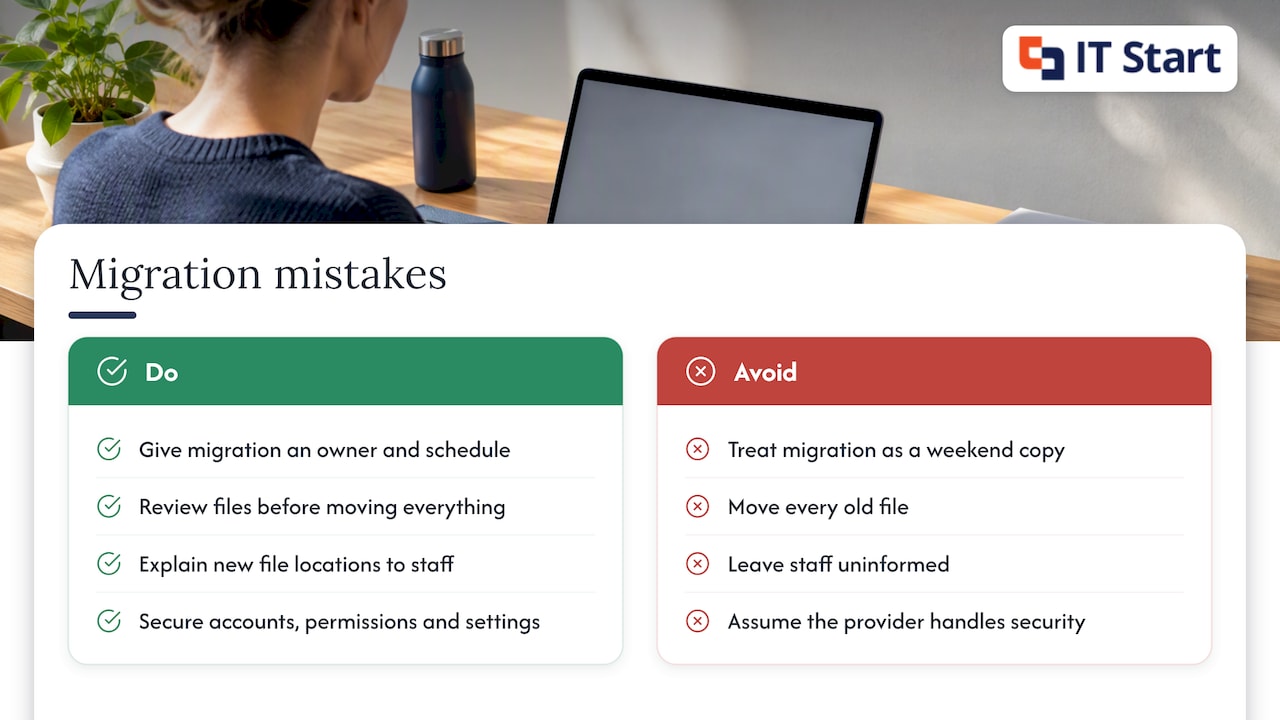
Honestly, the same four mistakes turn up again and again.
They treat it as a weekend copy job. Someone with good intentions drags the shared drive into OneDrive on a Friday afternoon. Permissions are lost, folder structures break and nobody knows who can see what. A migration is a project with an owner, a schedule and a rollback plan.
They move everything. The server has 14 years of files on it. Nobody has opened half of them since 2016. Migrating all of it means paying to store and back up data that nobody needs, and it makes search worse for everyone.
They forget the people. Staff arrive on Monday and the mapped S: drive has vanished. If nobody explained that files now live in SharePoint libraries and sync to their computers, the helpdesk phone rings all day.
They assume the provider handles security. The cloud provider secures its own infrastructure. You secure how your accounts, permissions and settings are used. More on that below.
The steps we follow
Vendors describe the process in slightly different ways, but the shape is the same. Microsoft Azure’s guide to data migration lists discovering and assessing data, assessing impact, assigning responsibilities and budget, designing the migration, implementing with testing, validating with technical and business stakeholders, and retiring the old configuration.
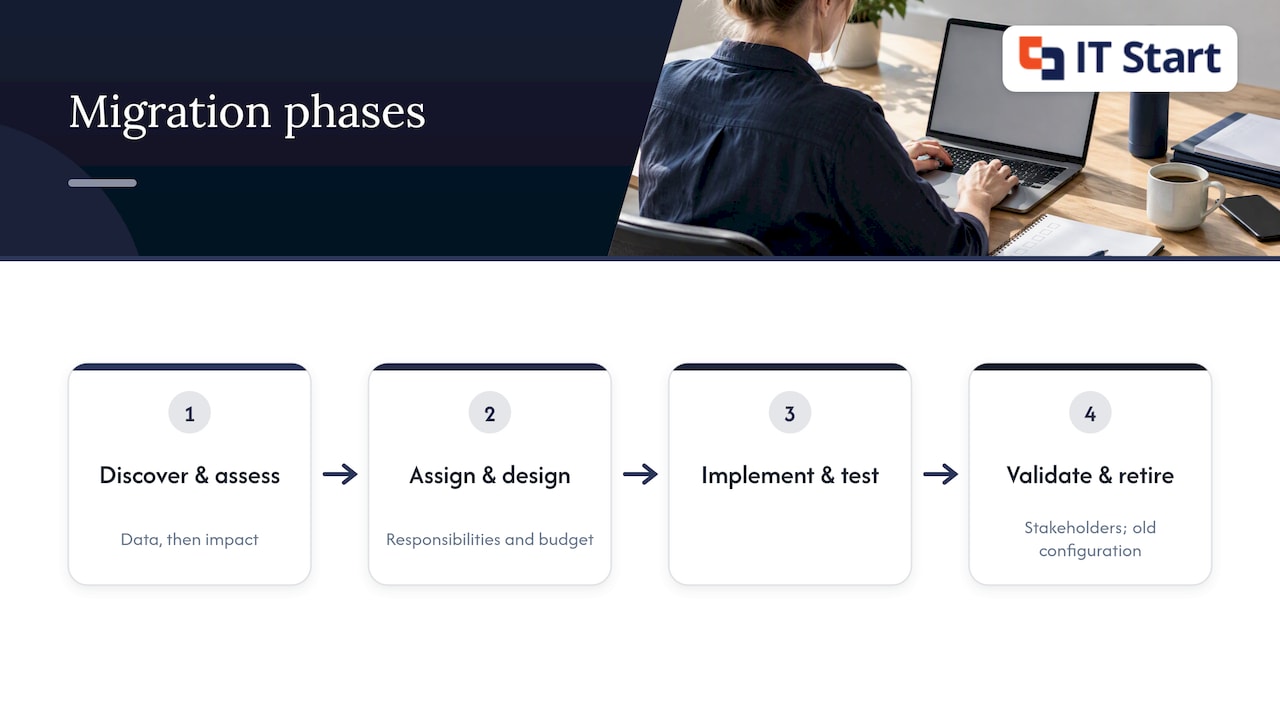
Here is how that plays out in a small business.
1. Audit what you have
We list every share, mailbox, application and device that touches the data. We note the size of each, who uses it and what depends on it. This is where surprises appear: a scanner that saves to a server folder, an accounting package that expects a mapped drive letter, a backup job nobody remembers setting up.
2. Decide what moves, what gets archived and what gets deleted
Sit down with whoever runs each department. Ask which folders they use this financial year. Anything untouched for years goes to an archive decision, not straight into the new environment. Your legal or accounting obligations might require you to keep some records. business.gov.au says Australian businesses must keep records securely and back up digital records, and that secure off-site storage such as the cloud is an option where possible. So archive with care, and do not delete on a hunch.
3. Check the technical limits
This is the kind of detail that trips up a DIY job. Microsoft publishes a maximum file size of 250 GB for file share migrations into Microsoft 365, and large design or video files can run into other limits as well, such as long folder paths. We scan for oversized files and over-long paths before the move and fix them at the source. It takes an hour. Finding them halfway through a transfer takes a day.
4. Prepare identities and security first
Before any data lands, we set up user accounts, turn on multi-factor sign-in for every account, and build the permission groups. We also create a Conditional Access policy, which is a rule that decides who can sign in, from where and on what device. Doing this after the data is there means the data sits exposed while you tidy up.
5. Take a verified backup
Verified means someone restored a sample and opened the files. A backup job that shows green has not proved anything. We restore a few files from different folders and check they open. Only then does the migration begin.
6. Pilot with a small group
Pick three or four people from different roles. Move their data first. Ask them to work normally for a few days and report anything missing. Most problems show up here and cost almost nothing to fix.
7. Migrate in stages
Move one department or one set of libraries at a time. Run a final sync so changes made since the first copy come across. Then switch users over, usually after hours.
8. Validate, then retire the old system
Staff and managers confirm their files are complete. We compare file counts and sizes between source and destination. The old server stays on but read-only for a set period. Switch it off only after everyone has agreed. We see a lot of businesses skip this and decommission the server on day two, then discover the payroll folder was missed.
Choosing a migration approach
You will see terms like lift-and-shift, re-platforming and re-architecting. Cloudflare’s overview uses these to describe common strategies, and says the choice depends on cost, timing, technical needs, business impact, data loss risk and compliance.
In plain terms:
| Approach | What it means | When it suits a small business |
|---|---|---|
| Lift-and-shift (re-hosting) | Move the system as it is, for example a server into an Azure virtual machine | Software that cannot change, such as an older industry application with a vendor that has no cloud version |
| Re-platforming | Move the data to a cloud-native service with small changes, such as files to SharePoint | Most file shares and email |
| Re-architecting | Rebuild the application to run in the cloud | Rarely worth it at this size unless the software is already due for replacement |
Our view: for most file shares and email, go straight to the cloud-native service. Lifting a file server into Azure as a virtual machine keeps everything working, but you still pay to run and patch a server you probably did not need. We only recommend it as a stepping stone, or where a specific application demands it.
AWS makes a similar point: the right design depends on the source and destination, security standards, order of operations and network limits, not on one universal method. Any provider who quotes the same method for every client has not looked at your environment.
How long it takes and how to limit downtime
We will not give you a blanket number, because it depends on data volume, internet upload speed and how tidy the source is. A Brisbane office on a business NBN plan with modest upload speed will move data much more slowly than one with a symmetrical fibre connection. That is worth checking early. Ask your internet provider what your upload speed is, then divide your data size by it for a rough floor.
AWS lists planning considerations including migration time, incompatibilities between source and destination, scheduling, migration type and network impact. To limit disruption, map dependencies, schedule the transfer, tell staff in advance, keep the old system until testing is complete and keep backups running throughout.
A simple rule we follow: the old system is never switched off on the same day as the cutover.
Security and Australian privacy obligations
This is where the data and reality do not match. Plenty of owners believe moving to the cloud hands security to Microsoft. The Office of the Australian Information Commissioner (OAIC) says otherwise. Its Notifiable Data Breaches report for January to June 2024 states that cloud security is a shared responsibility: providers secure their infrastructure, while organisations must correctly manage and secure their own cloud environments. The same report points to multi-factor authentication, role-appropriate access, security monitoring, supplier oversight and privacy by design.
A migration project can itself be the point of failure. In October 2025 the OAIC found that Vinomofo had not taken reasonable steps to protect personal information under Australian Privacy Principle 11.1. The breach happened during a data migration project and involved roughly 17GB of data and about 928,760 individuals. The OAIC pointed to gaps in security governance, policies, procedures and training. You do not need a data set that size to learn from it. The lesson is that someone must own the security of a migration, in writing, before it starts.
What that looks like in practice:
- Write down who is responsible for the project and who signs off each stage.
- Restrict access to the migration tools and the temporary copies of data to the people doing the work.
- Delete temporary copies and export files when the job finishes.
- Confirm where your provider stores data. Our article on data sovereignty for Brisbane businesses goes through the questions to ask.
If you hold personal information, health records, client financials or legal files, read our Privacy Act guide for Queensland SMBs. For hardening the environment after the move, the Australian Signals Directorate publishes small business cloud security guides that adapt the Essential Eight to Microsoft 365. ASD is clear that they are a starting point, not a full control set, so apply them in proportion to your risk.
A hypothetical example
This is an example, not a client story. Picture a 30-person accounting practice in Brisbane with one file server and a shared drive of 1.2 TB. After the audit, only about a third of the folders were touched in the past two years. The team archives the rest to cheaper storage after the partners confirm what the retention rules require. They move the current files into SharePoint libraries matched to the team structure, pilot with four staff, and keep the server read-only for a month. The result is a smaller migration, a smaller bill and fewer questions on cutover day.
The point is the order: audit, decide, secure, pilot, move, verify.
Tools: what is worth using
AWS describes a range of options including direct network connections, physical device transfer, streaming and database migration tools. That is aimed at large data sets. Most small businesses do not need any of it.
For a file server to Microsoft 365, Microsoft’s own migration tools are free and do the job. What you pay for is the person who knows how to prepare permissions and read the error logs. For email, a staged or cutover migration through Exchange Online is the usual route.
Where a paid third-party tool is not worth it: a single office with under a few hundred gigabytes and a clean folder structure. Where it can be: a messy tenant-to-tenant move after a company merger, where mailboxes, Teams and permissions all need to line up.
Who this advice is not for
If you are a sole trader with a laptop and a OneDrive folder, you do not need a managed migration. Turn on multi-factor sign-in, make sure backup is working and move on. It is also not written for organisations with large data warehouses or custom applications, where a specialist architecture review comes first.
Our view
We have a clear opinion on this. Migrate less than you think you need to. Secure before you move. And never decommission the old system until the people who use it have said it is fine.
For a business of 5 to 100 people, the cloud is almost always the right place for files and email. The mistakes are in the preparation. We would rather spend a week on audit and pilot than a month repairing permissions afterwards. And we would rather tell you a particular piece of old software should stay where it is than push it into Azure to make the project look bigger.
If you want to read more, our cloud migration checklist for Brisbane businesses and cloud migration steps guide go deeper on the planning stages.
— IT Start
How we can help
We plan and run migrations to Microsoft 365 and Azure for businesses of 5 to 100 people, from the Sunshine Coast to the Gold Coast. That includes the audit, the security setup, the pilot, the cutover and the follow-up. You can see how we approach Azure and cloud migration, or look at our Microsoft 365 support and management. For one-off projects, our Business IT Support starts from $145 an hour ex GST. If you would like a second opinion on a plan you already have, we offer a free consultation or project assessment.
FAQ
How much does cloud data migration cost?
It depends on how much data you have, how tidy it is and how many systems depend on it. Storage and licensing in the cloud is an ongoing cost, and the project work is a one-off. A scoped quote after an audit is more reliable than any figure from a web page. For project work, our Business IT Support starts from $145 an hour ex GST.
Is cloud data migration safe?
It can be, if security is set up before the data moves. That means multi-factor sign-in, role-based access and a verified backup. Safety also depends on who manages the project and how temporary copies are handled. The OAIC treats cloud security as a shared responsibility between you and your provider.
What are the five Rs of cloud migration?
The 5 Rs are usually listed as rehost, replatform, repurchase, refactor and retire, though some lists vary. For a small business, the practical ones are usually moving files to SharePoint, moving email to Exchange Online and retiring what you no longer use. Our table above covers the main approaches.
Do I need to keep the old server after migrating?
Keep it, read-only, until staff confirm their files are complete. We then agree a date to switch it off. Check any record retention requirements before you delete or wipe anything.
Sources
- What is cloud migration? Strategy and process, Google Cloud
- Digital tools for business, business.gov.au
- Record keeping, business.gov.au
- What is Data Migration? Microsoft Azure
- File size limitations for migration to Microsoft 365, Microsoft Learn
- What is data migration? Cloudflare
- What is a Data Migration Framework? AWS
- Notifiable data breaches report January to June 2024, OAIC
- Vinomofo did not protect personal information, OAIC
- Small business cloud security guides, Australian Signals Directorate