

A legacy system is any older application, server or database your business still depends on, even though it is hard to support, hard to connect to anything else or hard to secure. Legacy system migration is moving that system, and the data in it, onto something current. For most Brisbane businesses of 5 to 100 people, the safest way to do it is in small, tested steps with the old system left running until the new one has proven itself. We are a Managed IT team in Brisbane, and that is how we plan these moves for clients from the Sunshine Coast to the Gold Coast.
Key Takeaways
- Migrating the system and migrating the data are two jobs. Most failures we see come from treating them as one.
- Moving in small steps and running old and new side by side is easier to control than a single weekend cutover.
- Check data quality, take a backup and compare checksums before you decommission anything.
- If the old system holds tax records, you still need to be able to read and explain that data for the statutory retention period.
- Not every old system needs to move. Some are better retired and replaced with something off the shelf.
Table of Contents
- System migration and data migration are different jobs
- How to tell if a system really needs to move
- What most businesses get wrong
- Choosing an approach
- A migration routine that holds up
- Where the data and reality do not match
- Keeping records you may need later
- Security during the move
- Our view
- Getting help with the move
- FAQ
- Sources
System migration and data migration are different jobs
A system migration moves the application and the infrastructure it runs on. Think of an accounting package living on a server in a back cupboard that moves to Microsoft Azure or a cloud-hosted version. A data migration moves the information inside: customer records, job histories, invoices, documents.
You can do one without the other. You might lift an old server into the cloud as it is, which changes where it runs but not what it is. Or you might leave the system alone and only extract its data into a new product. The second is far more common in small businesses, because the old software is usually the problem, not the server it sits on.
We see this a lot: an owner asks for “a migration” and means one of these, while the quote they received covers the other. Before anyone prices anything, write one sentence that says what moves, where it moves to and what happens to the old system afterwards.
How to tell if a system really needs to move
Age alone is not the test. A ten-year-old system that does its job, still gets security updates and connects to what you use is fine. Here are the signs that, in our experience, justify the effort:
- Someone exports data to a spreadsheet every week or month to produce a report the system should produce itself.
- The vendor no longer issues updates, or the system only runs on an operating system that no longer receives them.
- It cannot connect to your accounting, payroll or Microsoft 365 tools, so people retype information.
- One person understands it, and nobody has written down how it works.
- Your insurer, a client or a regulator is asking questions about it that you cannot answer.
The last two matter most. Research from Trinity College Dublin found that poor documentation means a lot of time with a system expert to recover how things work, and that a poor understanding of the old system leads to a wrong specification for the new one. That paper is from 1997, but the pattern is exactly what we run into. A project stalls when the one person who knows the old job-costing database is on leave.
Who should not migrate yet
If your system works, is supported and nobody is exporting data to work around it, leave it. Paying for a migration to feel modern is money wasted. Also hold off if you are mid-way through something else, such as a office move or a change of accountant. A migration needs staff time for testing, and a busy end of financial year is a poor moment to ask for it.
What most businesses get wrong
Three mistakes come up again and again, so we will take them one at a time.
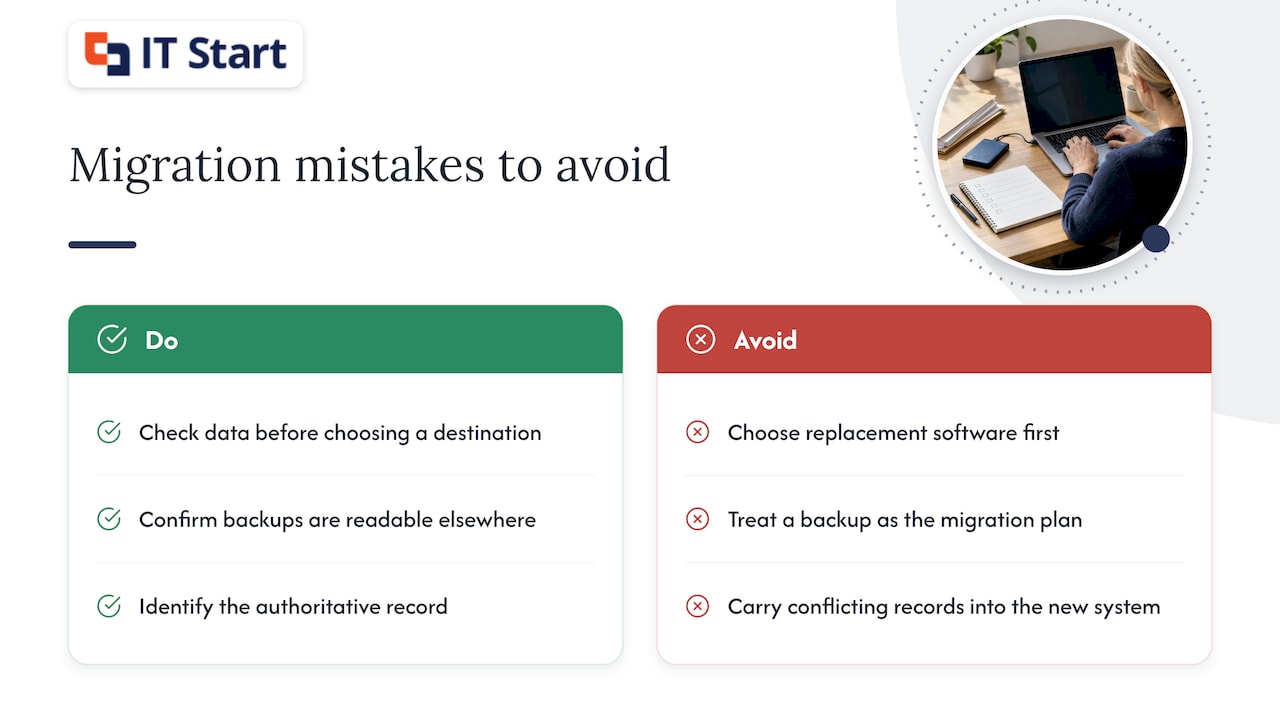
Starting with the new product. Owners often pick the replacement software first and then discover it cannot import the old data in a usable shape. Work backwards: look at the data first, then choose the destination.
Assuming the backup is the plan. A backup tells you the data exists. It does not tell you that you can read it in anything other than the system that created it.
Skipping the question of who owns which record. The National Archives of Australia says it is critical to understand where the master data or authoritative source is held before migration. In a small business the same customer often lives in three places: the accounting package, a spreadsheet and someone’s Outlook contacts. If you do not decide which copy wins, you carry the mess straight into the new system.
Choosing an approach
The academic literature describes two broad strategies. A University of Namur chapter on migrating legacy information systems identifies rewriting from scratch or migrating in small incremental steps. It notes that the incremental route makes a project more controllable and predictable in calendar and budget, though the hard part is deciding what the steps are.
That matches our practice. Here is how we match the approach to the business:
| Situation | What we recommend | Why |
|---|---|---|
| Old file server, shared drives, Outlook mailboxes | Move in stages to SharePoint, OneDrive and Exchange Online in Microsoft 365, one team or folder group at a time | Low risk, easy to roll back, staff learn gradually |
| Line-of-business app that still has a vendor | Upgrade to the vendor’s current or hosted version | The vendor already knows the data structure |
| Custom or abandoned app that only one person understands | Document it first, then replace it with an off-the-shelf product and import the data | Rebuilding it from scratch rarely pays off for a small business |
| Server that runs fine but the hardware is ageing | Move the server workload to Azure as is, then plan the app replacement separately | Removes the hardware risk quickly and buys time |
Honestly, for most businesses with under 100 staff, rewriting software from scratch is not worth paying for. A packaged product that does 90 per cent of the job beats a custom build that you then have to maintain.
There is a research approach worth knowing about, even if you never use its name. The Butterfly methodology from Trinity College Dublin keeps the legacy system in full production throughout and never stores live data in both systems at once, so shutdown at cutover is minimal. Most small business projects cannot copy that design exactly. The principle carries over though: keep people working on the old system while you build and test the new one, then switch with as little downtime as you can.
A migration routine that holds up
This is the order we work in. Your project may add steps, but it should not skip these.
- Inventory. List every system, who uses it, what it connects to and where its data lives. Include the spreadsheets and the Access database someone built years ago. Ask staff, not just the person who signed the invoices.
- Decide the source of truth. For each type of record, name the one system that is authoritative.
- Profile the data. The National Archives guidance recommends assessing data quality before transfer, looking at relevance, format, consistency, validity, completeness, accuracy, compliance and structure. In plain terms: how many duplicate customers, how many blank fields, which dates are in the wrong format. Clean these before the move, not after.
- Back up before extraction. Take a full copy and confirm it restores somewhere. Do this before the first export, every time.
- Move a pilot group. Pick one team or one month of records. Fix what breaks while only a few people are affected.
- Verify with checksums. A checksum is a short fingerprint calculated from a file. The National Archives advises generating them at the original location and verifying them against the final storage to detect modification or corruption. It is dull work and it is the step that catches a silently corrupted folder.
- Run both systems side by side. The same guidance advises running legacy and new systems concurrently until stakeholders are confident before decommissioning. We agree. Set the exit condition in advance, for example one full month-end close completed in the new system with figures matching.
- Switch the old system to read-only, then retire it. Do not delete it the same day. Keep it available, read-only, for a defined period.
Our cloud migration checklist for Brisbane businesses covers the same ground with a focus on cloud destinations, and our guide to cloud data migration goes deeper on moving files and mailboxes.
A hypothetical example
This is an invented scenario to show the process, not a client story. A 25-person trades business has a job-costing program on an old PC under a desk, plus a shared drive on a server out of warranty. We would first move the shared drive into SharePoint one department at a time, because that is the low-risk win. In parallel, we would export the job-costing data, profile it for duplicates and import it into a current product. Both would run for one full month-end. Only then would we make the old PC read-only. The pace is slower than a weekend cutover and much less stressful for the people doing the work.
Where the data and reality do not match
Vendors and guides tend to say a migration takes a set number of weeks. In practice the timeline is set by your people, not the technology. Data copying is quick. Staff finding time to check that their own records look right is slow. The Namur chapter makes a related point: its figure of 75 per cent of total cost going to legacy maintenance is described as a claimed figure that is considered prohibitive, and we would not treat it as a benchmark for your business. Work out your own cost. Count the hours spent on manual exports, the licences you pay for software nobody wants to touch and the extra support time the old system needs.
Cost and timeline depend on how much data you have, how clean it is, how many other systems connect to the old one, how many people must test it and whether the vendor cooperates with an export. Be wary of a fixed price quoted before anyone has looked at your data. For smaller one-off pieces of work, our Business IT Support is priced at $145 an hour ex GST, which suits a bounded task such as a mailbox move or a single application import.
The same Trinity College Dublin survey calls legacy migration expensive with a definite risk of failure, and observes that legacy data is perhaps the most important part of the system yet its migration problems have had little attention. Our reading is practical: the risk drops sharply when the data work is planned as its own task with its own owner.
Keeping records you may need later
If your old system holds financial records, the tax side matters. The ATO’s Taxation Ruling TR 97/21 says that where systems change, records must still allow the original data to be reconstructed, including explanations of data migrations. It also covers records being retained for five years and being readable at all times by ATO staff, and it suggests that data from old systems should be convertible to a standard readable format such as ASCII, DBF or a spreadsheet.
What that means for you:
- Write a short migration note: what moved, when, from which system to which, and any fields that were changed or dropped. Keep it with the records.
- Export a readable copy of key financial data to a standard format before you retire the old system.
- Ask your accountant or registered tax agent what to keep for your situation. We handle the technical side, and they confirm your tax obligations.
This is a general summary of a ruling, not tax advice. Our piece on why compliance matters for SMEs explains how this fits with your wider obligations.
Security during the move
A migration is a good time to fix access, because every account is being touched anyway. Turn on multi-factor sign-in for every account in Microsoft 365 before data lands there. Remove accounts for people who have left. Check who has admin rights on the old system, since in older systems that is often everybody. If the destination is Microsoft 365, set a Conditional Access policy, which is a rule that decides under what conditions someone is allowed to sign in, such as requiring a managed device. Our cyber security services cover this kind of baseline work.
Our view
We think most Brisbane businesses of 5 to 100 people do best with a staged migration led by the data, not the software. Our team looks after Microsoft 365, security, backups and networking for these businesses, so we usually see the whole picture: where the files live, who can reach them and what happens if a step fails.
Our advice is to move the simple things first. Shared drives and mailboxes go to Microsoft 365. Server workloads that cannot move yet go to Azure. Old line-of-business applications get replaced once someone has written down what they actually do. Keep the old system read-only for a defined period and never retire it before a full month-end has run cleanly on the new one.
We would also rather tell you when not to migrate. If the system is supported, connected and doing its job, spend the money elsewhere.
IT Start
Getting help with the move
If you want a second pair of eyes before you commit, we offer a free consultation or project assessment. We will look at what you run today, what connects to what and which pieces can move first. Our Azure and cloud migration service covers moving workloads, and our Microsoft 365 support and management looks after the destination once you are there. For cloud-based plans, our cloud migration steps for Brisbane businesses is a useful companion.
FAQ
What is the difference between legacy system migration and legacy data migration?
System migration moves the application and the infrastructure it runs on, for example from a server in your office to the cloud. Data migration moves the records inside it into a new product. Many projects need both, but they carry different risks and should be planned separately.
How long does a legacy migration take?
It depends on how much data you have, how clean it is, what connects to the old system and how much time your staff can give to testing. Moving a shared drive is usually far quicker than replacing a line-of-business application. We scope it after looking at your systems, not before.
Should we run the old and new systems together?
Yes, wherever the software allows it. The National Archives of Australia advises running both until stakeholders are confident before decommissioning. Agree the exit condition up front, such as one clean month-end close in the new system.
Do we have to keep data from the old system?
If it holds tax records, yes. The ATO’s TR 97/21 expects records to be retained for five years and to be readable, with migrations explained. Keep a readable export and a short note on what moved, and check your own obligations with your accountant.
Sources
- National Archives of Australia: Data migration
- ATO Taxation Ruling TR 97/21
- Trinity College Dublin: A Survey of Research into Legacy System Migration
- Trinity College Dublin: Legacy System Migration, a Legacy Data Migration Engine
- University of Namur: Migration of Legacy Information Systems