

Teams sprawl is what you get when anyone can create a Team, nobody owns it afterwards and nothing ever gets closed. You end up with five Teams called something like “Marketing”, a project Team nobody has opened since the project finished, and files scattered across all of them. The fix is not a big tool or a big project. It is a short set of rules (who can create, how things are named, who owns them, when they expire) and a tidy-up before you switch those rules on.
We look after Microsoft 365 for businesses of 5 to 100 people from our Brisbane office, and we serve clients from the Sunshine Coast to the Gold Coast. This is how we handle sprawl in practice, including the parts that tend to go wrong.
Key Takeaways
- Teams sprawl is a governance problem, not a Teams problem. It grows from easy creation, poor naming, missing owners and no end date.
- Audit first, then archive, then restrict. If you lock creation before cleaning up, you freeze the mess in place.
- Every Team needs two named owners and a purpose you can write in one line.
- Before you archive or delete anything, check retention and where recordings and files actually live. Some content expires on its own.
- A small business rarely needs a paid governance tool. A request form, a naming rule and an expiry policy get most of the way.
Table of Contents
- What Teams sprawl actually is
- What most businesses get wrong
- What we see in practice
- Where the data and reality do not match
- Step 1: audit what you have
- Step 2: check retention before you remove anything
- Step 3: merge duplicates and rethink channels
- Step 4: put the rules in place
- Perspective: why we recommend a light touch
- What is not worth doing
- Privacy and data location questions
- How we run a Teams tidy-up for clients
- Need a hand with your Teams?
- FAQ
- Sources
What Teams sprawl actually is
In plain terms, sprawl is an uncontrolled build-up of Teams that are disconnected, abandoned, redundant or ownerless. An Australian IT writer describes it as a pile of unused, outdated, duplicated or irrelevant data caused by weak administrative policies or too little user training.
The reason it happens so often is simple. In a standard Microsoft 365 tenant (your business’s own Microsoft 365 account and its settings), all users can create Microsoft 365 groups by default. Every Team sits on top of one of those groups. So the default is that any staff member can spin up a Team in thirty seconds, and nothing asks them to check whether one already exists.
That default is not a mistake. Microsoft sets it so people can get started without waiting on IT. The problem is that most small businesses never go back and add the guardrails.
What most businesses get wrong
We see this a lot, and it usually comes down to four habits.
They treat sprawl as a clean-up job, not a design job. Someone spends a weekend deleting Teams, and six months later the tenant looks the same. Without a creation rule and an expiry date, the cleaning never ends.
They lock creation down first. It feels like the responsible move. But if forty untidy Teams already exist, blocking new ones just preserves them. Clean up first.
They rely on one owner. Microsoft’s own guidance says to manage ownership and membership because owners leave and people do not remove themselves when a project ends or their role changes. A Team with one owner who left in March is an ownerless Team by April.
They name things after the person, not the purpose. “Sarah’s project” tells nobody anything in a year.
What we see in practice
Here is a hypothetical example, built from patterns we see across client tenants. A 40-person professional services firm has been on Microsoft 365 for four years. Staff have created Teams for each client, each internal project and a few social groups. Nobody has ever archived one.
When we run a first audit on a tenant like this, the same things tend to turn up:
- Several Teams with near-identical names, each holding part of the same client’s files
- Teams with a single owner who has since left
- Teams with no posts for a long time but a lot of files in the connected SharePoint site
- Guests (people outside your business) still in Teams for projects that ended long ago
- Private channels created for a conversation that could have been a normal channel
The cost shows up in small ways first. Someone sends a client the wrong version of a quote because two copies exist. A new starter asks which Team to use and gets three different answers. The IT side is quieter: more access to review, more sites to back up and more questions about who can see what. Mismanaged membership can also put sensitive information in front of the wrong people, which is the part we care about most.
Where the data and reality do not match
The advice you read online is mostly written for tenants with thousands of users. The vendor articles talk about automated lifecycle platforms and dashboards. For a business of 5 to 100 people, that is usually more than you need.
The second gap is about activity reports. Teams usage reports are a sensible place to start, because they show active users, channels, guests and messages per Team. But reports covering 7, 30 or 90 days can miss Teams that have been quiet for longer. A Team can look dead in the report and still be the place where someone checks a signed contract once a year. The same source suggests supplementing the reports with SharePoint file activity and group mailbox conversations. We agree. A Team with no chat but regular file edits is not abandoned.
The third gap is the one most guides skip. Deleting is rarely the problem. Losing something that matters is. More on that below.
Step 1: audit what you have
Start with a plain list. In the Microsoft Teams admin centre, open the list of Teams and export it. In the Microsoft 365 admin centre you can also see the groups behind them. For each Team record:
- The name and a one-line purpose, written by you if nobody knows
- The owners (and whether they still work for you)
- The number of members and guests
- When anything last happened: chat, file edits or mailbox activity
- Whether it holds client or financial information
Then sort the list into four piles: keep as is, merge, archive and delete. Most of the list lands in the first three. Delete is the smallest pile, and for anything with client files we would rather archive than delete.
This is a good one-hour job for a manager with an IT contact beside them. The IT person reads the settings. The manager answers the question IT cannot: “Is this still used?”

Step 2: check retention before you remove anything
This is the step that keeps a clean-up from turning into an incident.
Microsoft says inactive Teams can be archived into a read-only state, which keeps a point-in-time view of the content. It also notes that retention policies can preserve or delete information, and that archived Teams remain subject to expiration unless they are excluded or renewed. In other words, archiving does not automatically make something permanent.
Two Australian records bodies make the same point from the public-sector side. The Public Record Office Victoria states that Teams recordings may expire automatically, and that recordings meant to be kept as records should be moved or copied to a SharePoint site rather than left in OneDrive. The ACT Government’s records advice warns that retention labels, metadata, export and audit settings need deliberate design, and that the default setup should not be treated as a records system.
Your business is probably not a government agency, so those rules do not bind you directly. But the lesson carries over. If a Team holds meeting recordings from a client engagement, a board-style decision trail or anything you may need to produce later, decide where it lives before the Team goes. Your accountant or lawyer can tell you how long you need to keep specific record types.
A practical checklist before archiving a Team:
- Open the connected SharePoint site and copy anything that is the only version of a document
- Move any recordings you want to keep to a SharePoint document library
- Check whether a retention policy already applies to that Team
- Confirm the owner or manager agrees in writing (an email is fine)
Step 3: merge duplicates and rethink channels
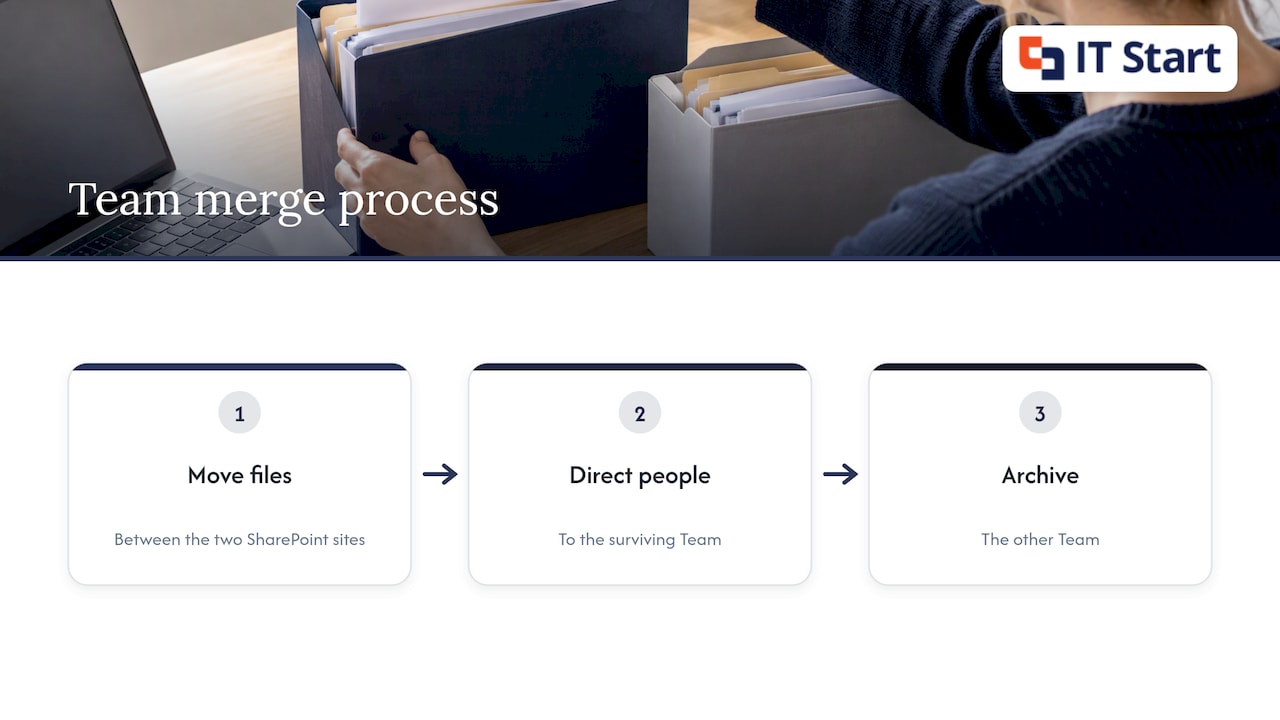
Merging two Teams is the part people put off. There is no one-click merge. You move files between the two SharePoint sites, point people at the surviving Team and archive the other.
Our view: if you have a Team per small project, collapse most of them into channels inside one bigger Team. A single “Client projects” Team with a standard channel per project is easier to find, easier to secure and easier to retire. Keep separate Teams for groups with genuinely different membership, such as leadership or HR.
A private channel is worth using when a small group inside a Team needs a separate conversation. It is not worth using as a default. Each one gets its own separate SharePoint site, which adds to the very sprawl you are trying to reduce.
Step 4: put the rules in place
Now you can set the rules. Microsoft recommends documenting your requirements for creation, naming, classification, guest access, expiration, retention, archiving and membership, and says Microsoft Entra ID controls can put them into effect. For a small business, that comes down to five decisions.
Who can create Teams
You can limit group creation to members of a chosen security group, using the approach Microsoft describes in its guidance on managing who can create groups. Users outside that group can no longer create Microsoft 365 groups, though they can still manage membership of groups they own, as Microsoft Entra documentation explains.
We usually put the office manager, team leads and our own team in the creators group. Everyone else submits a request. That sounds heavy, but in a 30-person business it is a short form and a same-day reply from whoever looks after the group.
The request needs three things from the person asking: a purpose, a named owner and an expected end date. A request path built around those fields reduces test sites and duplicates.
How Teams are named
Pick a pattern and write it down. A simple one is the type, then the name: “Client – Smith Dental”, “Project – Office move”, “Internal – Finance”. A prefix makes the list sort itself in the admin centre and in the Teams app.
A naming policy can enforce a prefix automatically. Even without it, a short rule in your onboarding notes does most of the work.
Who owns Teams
Two owners per Team, minimum. When someone leaves, removing them from the Teams they own is a line in your leaver checklist, along with disabling their sign-in and handing over their mailbox and files. If you run leavers through a checklist already, this is one more tick box.
When Teams expire
A Microsoft 365 group expiration policy lets an administrator set a period after which inactive groups are deleted unless they are renewed. Owners get renewal emails first, and Microsoft’s lifecycle documentation says groups with user activity are renewed automatically.
This one deserves care. Expiry deletes, so it must sit alongside your retention settings, and you should check the licensing for your Microsoft plan before you plan around it. We never switch it on for the first time without the audit and retention check above. And we tell owners in advance, because an unexpected renewal email is easy to ignore.
Who gets in as a guest
Decide who can invite external people, and review the guest list on a schedule. External access is the area where sprawl turns from untidy into a real exposure. The Western Australian government’s record-keeping guidance for Microsoft 365, written for public organisations, recommends structured permissions, clear external-sharing rules and regular access reviews, with access removed when people change roles or leave. That is a sensible habit for any business. Our Microsoft 365 hardening guide for Brisbane SMEs covers sharing and sign-in settings in more detail.
Perspective: why we recommend a light touch
We have cleaned up enough Microsoft 365 tenants to hold a firm opinion: the most useful governance is the kind your staff barely notice.
We recommend a small creators group, a naming pattern, two owners per Team and an expiry policy that has been tested before it goes live. We do not recommend blocking everyone from creating Teams and leaving it there. People then work around you with personal file sharing and email attachments, which is worse than sprawl.
We also think visibility beats restriction. If staff can see what Teams exist, what each is for and who owns it, they stop creating duplicates. A short pinned list or a one-page index on your intranet does more than most policies.
Good routine care is what keeps this tidy. A quarterly look at the Team list, a leaver checklist that includes Teams ownership and a guest review twice a year take very little time. That is the kind of ongoing Microsoft 365 care our Managed IT clients get, and it means sprawl never builds up to the point where it needs a project.
IT Start
What is not worth doing
We would rather be straight about this than sell you something you do not need.
- A paid governance platform for a business under 100 people. The built-in controls cover creation, naming, expiry and guest settings. A third-party tool starts to make sense when you have hundreds of Teams and a dedicated person managing them.
- Deleting everything inactive in one go. Archive first and wait. Deletion is the step you cannot comfortably undo.
- Policing every channel. Channel clutter inside a well-owned Team is a small problem. Teams and sites without owners are the big one.
- Rolling out rules without telling anyone. If staff find out when a request is declined, they will resent it. Send a short note explaining what changed and where to ask.
This advice is also not for you if you are the only person in the business and use Teams for yourself and a contractor. You do not have sprawl. You have a short list.
Privacy and data location questions
Owners often ask whether having their Microsoft 365 data in Australia settles the privacy question. Not entirely. Microsoft’s own Australian guidance says that when a tenant is provisioned in Australia, stored Copilot interaction content is held at rest in Australia, but it also says businesses should still separate storage location from processing and access. The same document explains that disclosing personal information overseas is covered by Australian Privacy Principle 8, which asks entities to take required steps about the overseas recipient.
What this means for sprawl: the more places client information sits, the more places you have to account for. Fewer, well-owned Teams make that question much easier to answer. If you handle health, legal or financial information, ask your adviser how your obligations apply to you.
How we run a Teams tidy-up for clients
Our usual order looks like this, adjusted for the size of the business:
- Export the Team and group list and sort it into keep, merge, archive and delete with the business owner
- Review owners, guests and retention settings
- Copy anything unique to a safe location and archive the quiet Teams
- Merge the duplicates and move files
- Switch on the creators group, naming pattern and expiry policy
- Send a one-page note to staff and add a quarterly review to our routine checks
It fits well alongside a wider look at your tenant. If you want to see what else we check, our Microsoft 365 security best practices for Brisbane SMBs article is a good companion.
Need a hand with your Teams?
Our team looks after Microsoft 365 for businesses with 5 to 100 people, including Teams and SharePoint governance. If your tenant has grown out of control, we can run the audit with you and set up the rules above. You can read about our Microsoft 365 support and management service, or ask about Business IT Support for a one-off project, which starts from $145 an hour ex GST.
FAQ
How do I know if my business has Teams sprawl?
Export your list of Teams and look for near-identical names, Teams with a single owner who has left and Teams with no recent activity. If staff regularly ask which Team to use, that is also a sign. Check file activity as well as chat before you decide a Team is unused.
Should I stop staff from creating Teams?
For most businesses, limit creation to a small group and give everyone else a simple request route. A total block tends to push people toward email attachments and personal sharing. Tidy up the existing Teams first so you do not lock in the mess.
Is archiving a Team the same as deleting it?
No. An archived Team becomes read-only and keeps a point-in-time view of its content. It can still be caught by an expiration policy, so check that policy and your retention settings before you rely on archiving as long-term storage.
Do I need a third-party tool to manage Teams sprawl?
Usually not for a business under 100 people. The built-in controls for creation, naming, expiry and guest access cover most needs. A paid tool starts to make sense when you manage hundreds of Teams.
How often should we review our Teams?
A quarterly review of the Team list and owners works well for most small businesses. Review guest access about twice a year. Tie both to a routine so they actually happen.
Sources
- Microsoft Teams Sprawl: What It Is and How to Reduce It
- How to identify MS Teams sprawl and work towards an optimal digital environment (iTWire)
- Plan for governance in Teams (Microsoft Learn)
- Manage who can create Microsoft 365 Groups (Microsoft Learn)
- Set up self-service group management in Microsoft Entra ID
- Microsoft 365 group expiration policy (Microsoft Learn)
- Configure the expiration policy for Microsoft 365 groups (Microsoft Entra)
- Find inactive Microsoft Teams and groups guide (ShareGate)
- SharePoint sprawl and the simple governance fix (Syskit)
- Record Keeping Governance for Microsoft 365 (Government of Western Australia)
- Managing Records in Microsoft 365 (Public Record Office Victoria)
- Records advice: Microsoft 365 compliance (ACT Government)
- The Australian Privacy Act and Generative AI (Microsoft)