

Microsoft 365 includes desktop and web versions of Word, Excel, PowerPoint, Outlook, and OneNote, plus Teams for collaboration, SharePoint for file sharing, and OneDrive with 1 TB of cloud storage per user on most plans. Higher business tiers add Exchange email hosting, Microsoft Entra ID, Microsoft Defender for Business, Microsoft Intune for device management, and Microsoft Purview for data protection. Microsoft 365 Copilot is available as an add-on or bundled in select enterprise plans.
Here is what you get at a glance, depending on your plan:
For individuals (Personal and Family):
- Fully installed desktop apps on up to 5 devices
- 1 TB OneDrive storage per person
- Web and mobile versions of all core apps
- Microsoft Teams (personal use)
- No Exchange email hosting or business security tools
For business users (Business Basic through Enterprise):
- Web-only apps (Basic) or full desktop installs (Standard, Premium, Apps for Business, Enterprise)
- Exchange Online email hosting on all business plans
- Teams meetings for up to 300 participants on business plans
- Security tools that scale from basic spam filtering (Basic) up to Intune, Defender for Business, and Purview (Premium and Enterprise)
- Microsoft 365 Copilot as an add-on or included in eligible plans
Read the plan comparison section if you need to pick a tier. Jump to the security section if you manage devices or handle sensitive data. The MSP view section covers what Brisbane SMBs most commonly get wrong.
Key takeaways
Microsoft 365 Business Premium gives most Australian SMBs the best balance of productivity apps, hosted email, and integrated security tools without needing to buy separate endpoint protection or device management solutions.
| Point | Details |
|---|---|
| Plan choice drives security, not just apps | Business Basic and Standard lack endpoint protection; Business Premium adds Intune, Defender for Business, and Entra ID P1. |
| Microsoft does not back up your data | Retention and versioning are not point-in-time backups; add a third-party backup tool before you need it. |
| Mix licences by role | Assign Basic to light users, Standard to knowledge workers, and Premium to anyone on a managed device or handling sensitive data. |
| MFA is the first thing to check | Security defaults enable MFA for new tenants, but older tenants may have it off; verify this in the admin centre immediately. |
| IT Start can audit your setup | IT Start provides Microsoft 365 assessments, migrations, and managed support for Brisbane SMBs. |
Table of Contents
- What apps and services does Microsoft 365 include?
- How do the main Microsoft 365 plans differ?
- Microsoft 365 plans at a glance
- What security and device management features are included?
- What we see go wrong in real SMB Microsoft 365 setups
- How to pick the right Microsoft 365 plan
- Installs, storage, user limits, trials, and add-ons in Australia
- An honest MSP perspective on Microsoft 365
- How IT Start can help you get Microsoft 365 right
- Sources
- FAQ
What apps and services does Microsoft 365 include?
Microsoft 365 delivers Word, Excel, PowerPoint, Outlook, and OneNote across all paid plans, either as full desktop installs or web and mobile versions depending on the tier. Access is included on PC only and is available in Business Standard, Business Premium, and Microsoft 365 Apps for Business. Visio and Publisher are not part of standard Microsoft 365 plans and require separate licences.
Core productivity apps
- Word — documents, reports, mail merge; the desktop version handles complex formatting that the web app cannot
- Excel — spreadsheets, pivot tables, Power Query; the desktop version supports macros and add-ins the web version does not
- PowerPoint — presentations; web version is capable for most tasks, desktop is better for complex animations
- Outlook — email, calendar, contacts; desktop Outlook connects to Exchange Online on business plans
- OneNote — shared notebooks for notes and meeting records; available on all plans including web and mobile
- Access — database tool for Windows only; included in Business Standard, Business Premium, and Apps for Business
Collaboration and storage
Teams is the hub for chat, video meetings, and file sharing. Business plans support Teams meetings for up to 300 participants, and higher enterprise plans raise that ceiling further and add webinar and town hall features. SharePoint sits underneath Teams for document libraries and intranet pages, though most users never open SharePoint directly.
OneDrive gives each user 1 TB of cloud storage on most paid plans. Files sync to the desktop so you can work offline and changes upload when you reconnect. That offline capability is one of the most practical features for staff who travel or work from sites with unreliable internet.
Additional bundled apps
Plans like Business Premium include a broader set of tools that many businesses never activate:
- Planner and To Do — task management, useful for small project tracking
- Forms — surveys and quizzes, good for client intake or staff feedback
- Loop — collaborative workspaces for real-time co-authoring
- Clipchamp — basic video editing, included in most business plans
- Bookings — appointment scheduling with a public booking page
- Sway — visual presentations and reports, lighter than PowerPoint
Microsoft 365 Copilot
Copilot is Microsoft’s AI assistant. Copilot Chat is included for eligible business users signed in with a Microsoft Entra ID account. The fuller Microsoft 365 Copilot experience, which drafts emails, summarises meetings, and generates content inside Word and Excel, is sold as a paid add-on or bundled in certain enterprise plans. For a detailed look at what Copilot can actually do for a small business, the Copilot for SMBs guide on the IT Start blog is worth reading before you commit to the add-on cost.
How do the main Microsoft 365 plans differ?
The Microsoft 365 plan matrix covers seven main plan families. The differences that actually matter for most buyers come down to three things: whether you get desktop apps, whether email hosting is included, and how much security and device management you need.
Personal and Family plans
Personal covers one person on up to 5 devices simultaneously. Family extends that to up to 6 people, each with their own 1 TB OneDrive and their own set of app installs. Neither plan includes Exchange Online business email, domain-based email addresses, or any of the business security tools. They suit freelancers, students, and households well. They are not appropriate for a business that needs shared mailboxes, compliance controls, or device management.
Microsoft 365 Apps for Business
This plan gives you full desktop installs and 1 TB OneDrive per user but no Exchange email hosting. It suits businesses that already have email handled elsewhere (Google Workspace, for example) and just want the Office apps and OneDrive. The plan pricing page shows it sits below Business Standard in cost.
Business Basic
Web and mobile apps only, no desktop installs. Exchange Online email, Teams, SharePoint, and OneDrive are all included. This is the entry point for businesses that want hosted email and Teams but do not need full desktop Office. Honestly, we see a lot of businesses put all their staff on Basic to save money, then discover that their accountant or operations manager cannot run Excel macros or use Outlook properly. That mismatch causes helpdesk tickets and frustration.
Business Standard
Adds full desktop installs to everything in Basic, plus webinar hosting in Teams. This is the most common plan we recommend for knowledge workers. It covers the majority of what a 10 to 50 person business needs day to day.
Business Premium
Business Premium is where the security story changes significantly. On top of everything in Standard, you get Microsoft Intune Plan 1 for device management, Microsoft Defender for Business for endpoint protection, Defender for Office 365 Plan 1 for email threat protection (safe links, safe attachments), Microsoft Entra ID P1 for Conditional Access, and Microsoft Purview for basic data loss prevention. All business plans cap at 300 users.
Enterprise plans (E3 and E5)
Once you exceed 300 users, or if your compliance requirements are more complex (healthcare, finance, legal), you move to Enterprise. E3 adds advanced compliance, unlimited archiving, and stronger identity controls. E5 adds Microsoft Defender for Endpoint Plan 2, Microsoft Sentinel integration, and advanced analytics. These plans require a volume licensing agreement and are typically managed with the help of a Microsoft partner.
Practical buying signals:
- Casual or front-desk staff with simple email needs: Business Basic
- Knowledge workers who need full Office apps: Business Standard
- Any business handling sensitive data or needing device control: Business Premium
- Organisations over 300 users or with compliance obligations: Enterprise E3 or E5
- Businesses that already have email sorted and just need apps: Microsoft 365 Apps for Business
For a deeper look at matching licences to roles, the Microsoft 365 licence comparison tips article covers the role-based decision in more detail.
Microsoft 365 plans at a glance
The table below covers the key decision dimensions across all main plan families, based on the official Microsoft plan comparison.
What security and device management features are included?
Security is where the plan differences matter most, and where most SMBs underestimate their exposure. The Microsoft 365 security overview lays out which tools come with which plans clearly.
Microsoft Entra ID
Every Microsoft 365 plan includes Entra ID Free, which covers basic identity and single sign-on. Business Premium and Enterprise E3 and above include Entra ID P1, which adds Conditional Access policies. Conditional Access lets you block sign-ins from outside Australia, require compliant devices, or enforce MFA only when a login looks risky. Without P1, you are relying on security defaults, which enable MFA for all users but give you no granular control over when and how it applies.
Microsoft documents that security defaults enable multifactor authentication by default for new Microsoft 365 for business tenants. That is a good baseline. But it is not the same as a properly configured Conditional Access policy, and we see businesses confuse the two.
Email protection
All business plans include basic anti-spam and anti-malware filtering for Exchange Online. Business Premium adds Defender for Office 365 Plan 1, which includes safe links (real-time URL scanning) and safe attachments (sandboxing email attachments before delivery). That difference matters. We have seen phishing emails sail through Basic and Standard tenants that would have been caught by Defender for Office 365.
Device management
Basic Mobility and Security is included in all business subscriptions but is limited to basic device policies and remote wipe of mobile devices. Business Premium includes Microsoft Intune Plan 1 for full policy-based device management across Windows, macOS, iOS, and Android. Intune lets you push configuration profiles, enforce encryption, block USB drives, and remotely wipe a lost laptop without touching the user’s personal data.
Baseline security in Business Basic and Standard covers email spam and malware but lacks the endpoint protection and device controls that meet modern Australian standards such as the ACSC Essential Eight. Without Intune and Defender for Business, you remain exposed on mobile devices and laptops.
Defender for Business and Purview
Defender for Business is Microsoft’s endpoint detection and response tool for SMBs. It is included in Business Premium and provides antivirus, threat detection, and automated investigation across enrolled devices. Microsoft Purview, included in Premium and Enterprise tiers, adds data loss prevention policies that can block sensitive data from being emailed externally or saved to personal storage.
Pro Tip: The single most common misconfiguration we see is organisations that have Business Premium but never deployed Intune. The licences are there, the tools are ready, but nobody turned them on. Enrol your devices in Intune on day one, not six months later after an incident.
App updates and support lifecycle
With any Microsoft 365 subscription, your desktop apps update automatically on Microsoft’s monthly or semi-annual channel. You do not pay separately for new versions of Word or Excel. Security patches apply automatically. This is one of the genuine practical benefits over a one-time Office purchase, where you eventually fall off the support lifecycle and stop receiving security updates.
What we see go wrong in real SMB Microsoft 365 setups
We manage Microsoft 365 for Brisbane businesses ranging from 10 to 50 staff. The same problems come up again and again, and most of them are fixable in a day if you know what to look for.
No MFA enabled
This is still the most common gap. A business buys Microsoft 365, sets up email, and nobody turns on MFA. Security defaults should enable it automatically for new tenants, but older tenants that predate that change often have it off. We have seen accounts compromised within weeks of setup because of this. Fix: go to the Microsoft 365 admin centre, check your security defaults or Conditional Access policies, and confirm MFA is enforced for every user, not just admins.
“Microsoft backs up our files” — no, it does not
Honestly, this one causes the most damage. Microsoft provides versioning and retention policies, but it does not offer a full point-in-time backup service for user data. If a staff member deletes a folder and nobody notices for 93 days (the default recycle bin retention), that data is gone. Ransomware that encrypts OneDrive files and syncs the encrypted versions to the cloud is a real scenario. You need a third-party backup tool for long-term retention and ransomware recovery. We see this assumption every single time we onboard a new client.
Mixed licence types causing management headaches
A business starts with Basic for everyone, then upgrades a few people to Standard, then adds Premium for the owner. Now you have three licence types, inconsistent app availability, and Intune only partially deployed because not everyone has a Premium licence. The fix is to standardise by role: Basic for reception and light users, Standard for most staff, Premium for anyone handling sensitive data or using a company-managed device.
Out-of-date devices blocking security controls
Intune and Defender for Business work best on Windows 10 or later with current updates applied. We regularly see clients with Windows 10 machines that have not been updated in months, or the occasional Windows 7 machine still connected to the network. Those devices cannot be enrolled in Intune properly and create gaps in your device management coverage.
Remediation checklist:
- Confirm MFA is enforced for all users in the admin centre
- Check your recycle bin and retention settings; add a third-party backup if you do not have one
- Audit your licence mix and align it to roles
- Enrol all company devices in Intune if you have Business Premium
- Run a Windows Update audit and retire or update any machine more than two versions behind
Pro Tip: Enabling the Microsoft Secure Score dashboard in the Microsoft 365 Defender portal takes about five minutes and gives you a prioritised list of configuration improvements. It is the fastest way to find the low-effort wins that reduce your risk without a full security audit.
For a step-by-step hardening checklist tailored to Queensland businesses, the Microsoft 365 hardening guide for Queensland SMBs covers the specifics in detail.
How to pick the right Microsoft 365 plan
The right plan depends on what your people actually do, not on what sounds most complete.
For individuals:
- One person, personal use: Personal
- Household with up to 6 people: Family
- Freelancer who needs full apps but already has email: Microsoft 365 Apps for Business (cheapest path to desktop installs)
For SMB roles:
- Reception, admin, casual staff who only need email and basic documents: Business Basic
- Most office workers, sales, operations, finance: Business Standard
- Managers, mobile staff, anyone on a company-managed device: Business Premium
- IT, security, compliance, or anyone handling health, legal, or financial data: Business Premium at minimum, Enterprise E3 or E5 for complex compliance
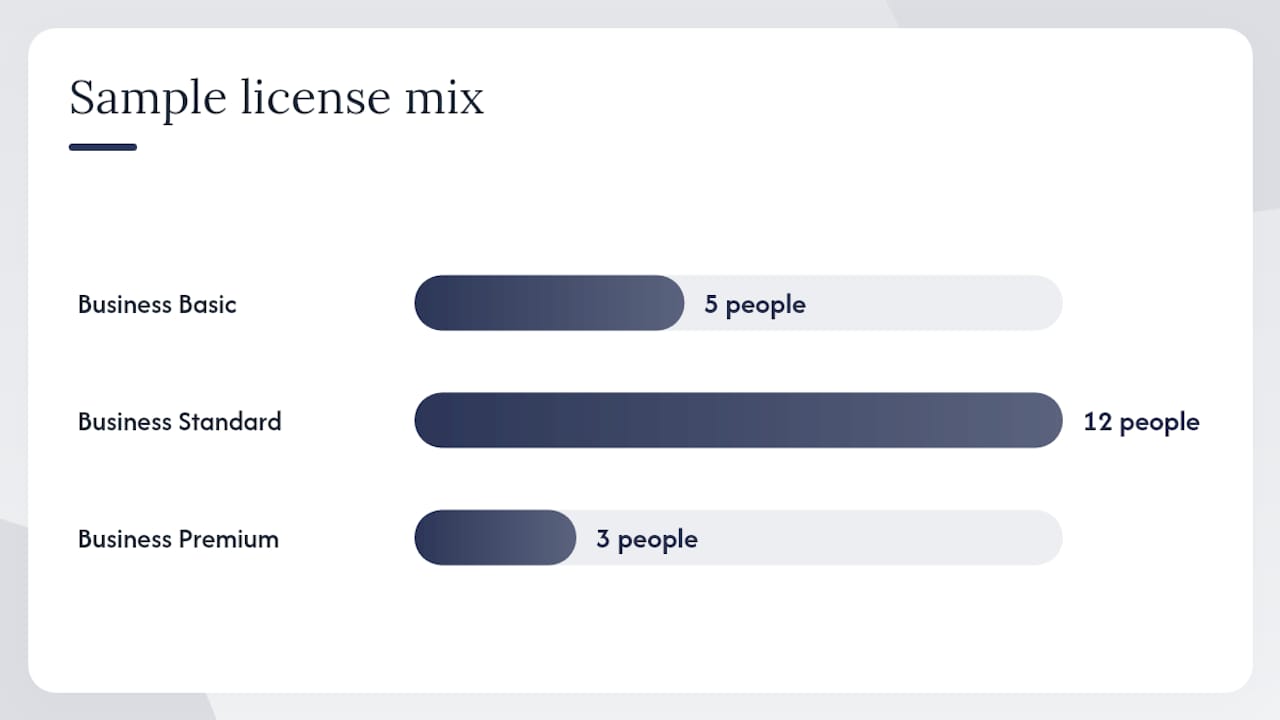
Mixing licences is fine and often the right call. A 20-person business might run 5 people on Basic, 12 on Standard, and 3 on Premium. Microsoft allows this within the same tenant. The Microsoft 365 FAQ confirms you can combine different plan types and switch users between plans without losing data.
The main thing to avoid is putting everyone on Basic to save money and then discovering that your key staff cannot do their jobs properly. The cost difference between Basic and Standard is modest. The productivity loss from web-only apps for people who need desktop Excel is not.
Installs, storage, user limits, trials, and add-ons in Australia
Device installs and offline access
Personal and Family plans allow up to 5 simultaneous device sign-ins per person. Business plans allow the same: each licensed user can install the desktop apps on up to 5 PCs or Macs and 5 tablets, and sign in on up to 5 mobile devices. Offline access works for all desktop app plans. Files saved to OneDrive sync automatically when you reconnect to the internet.
User limits and enterprise sizing
Business plans (Basic, Standard, Premium, Apps for Business) cap at 300 users. If your organisation exceeds that, or if you need the advanced compliance features in E3 or E5, you move to Enterprise licensing. Enterprise plans are sold through Microsoft volume licensing or a Microsoft partner and do not have a user cap.
Trials, switching, and billing in Australia
Microsoft offers a free trial for most business plans, typically 30 days. You can switch between plans mid-subscription; Microsoft prorates the cost. All Microsoft 365 business plans are priced in Australian dollars on the Australian storefront and include GST. Prices are listed per user per month, with discounts for annual commitment over monthly billing. This is general information about how billing works; for specific tax treatment of software subscriptions in your business, speak with your accountant.
Common add-ons
- Microsoft 365 Copilot — the full AI assistant experience; sold as a per-user add-on for eligible plans
- Teams Phone — adds PSTN calling to Teams so staff can make and receive phone calls through Teams
- Defender for Office 365 Plan 2 — extends email threat protection beyond what Plan 1 covers; relevant for Enterprise customers
- Microsoft Entra ID P2 — adds Privileged Identity Management and Identity Protection; relevant for larger or more security-mature organisations
- Azure services — Microsoft 365 integrates with Azure for virtual machines, Azure AD B2C, and more; see the Microsoft Azure Brisbane page for how that fits with a Microsoft 365 environment
Australian businesses using Xero, MYOB, or other local accounting platforms can connect them to Microsoft 365 through Microsoft Power Automate or direct integrations available in the Microsoft AppSource marketplace. These integrations are not bundled with Microsoft 365 but are accessible through the platform.
An honest MSP perspective on Microsoft 365
Most businesses we talk to think of Microsoft 365 as “Office in the cloud.” That framing undersells what you actually get at the Premium tier and leads to poor buying decisions. The real value of Business Premium is not the apps. It is the security stack: Intune, Defender for Business, Entra ID P1, and Defender for Office 365 Plan 1 working together. For a business under 300 staff, that combination replaces several point solutions you would otherwise pay for separately.
The misconception that buying the wrong low tier is cheaper often costs more in the long run. We have seen clients on Business Basic pay separately for a third-party endpoint protection tool, a separate MDM solution, and a separate email security gateway. Add those up and Business Premium is cheaper, and the integration is tighter.
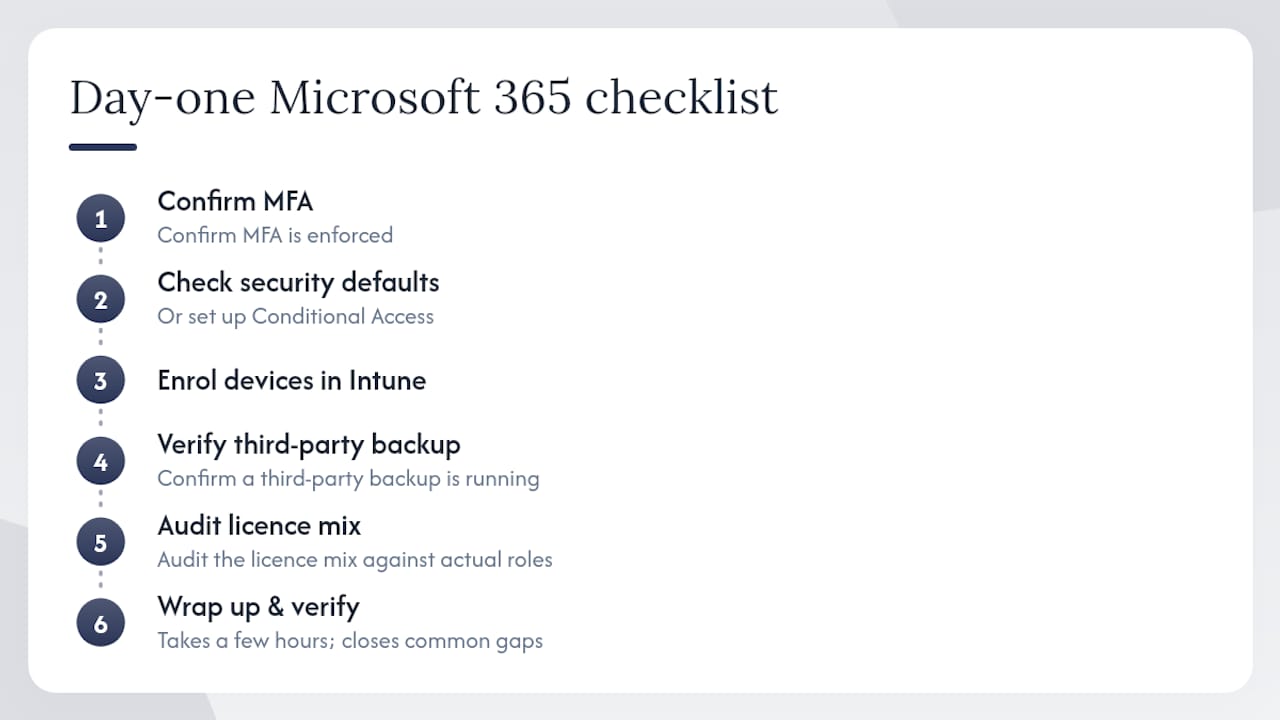
What we do on day one for a new Microsoft 365 client: confirm MFA is enforced, check security defaults or set up Conditional Access, enrol devices in Intune, verify that a third-party backup is running, and audit the licence mix against actual roles. That process takes a few hours and closes the most common gaps immediately.
The surprise that comes up most often during migrations is the backup assumption. Every single client we have migrated from an on-premises Exchange server or from Google Workspace has assumed Microsoft backs up their data. It does not, not in the way most people mean. Retention policies are not backups. Sort this out before you migrate, not after.
How IT Start can help you get Microsoft 365 right
Getting Microsoft 365 set up correctly from the start saves a lot of pain later. IT Start works with Brisbane SMBs to handle the full process: licence selection matched to your roles, migration from your current email or file storage, security hardening (MFA, Intune enrolment, Defender configuration), and third-party backup setup. Ongoing managed support means your tenant stays configured correctly as your team grows and Microsoft releases changes.
If you are not sure whether your current Microsoft 365 setup is actually secure, a quick audit will tell you. IT Start’s cloud services page covers what is included, and the cyber security page details the security hardening work we do for SMBs across Brisbane and Queensland. Get in touch to book a free Microsoft 365 assessment.
Sources
FAQ
What is included in the Microsoft 365 package?
Microsoft 365 includes Word, Excel, PowerPoint, Outlook, OneNote, Teams, OneDrive (1 TB per user on most plans), and SharePoint. Business plans also include Exchange Online email hosting, and higher tiers add security tools like Microsoft Intune, Defender for Business, and Microsoft Entra ID P1.
What is the point of paying for Microsoft 365?
The subscription gives you always-updated desktop and web apps, 1 TB of cloud storage, hosted business email, and Teams for collaboration. Business Premium adds a full security stack (device management, endpoint protection, email threat filtering) that would cost more to assemble from separate products.
Do you really need a Microsoft 365 subscription?
If you need hosted business email, full desktop Office apps that stay current, or any of the security and device management tools, yes. A one-time Office purchase gives you apps but no email hosting, no Teams, no OneDrive, and no security tools, and the apps eventually fall off Microsoft’s support lifecycle.
What is Microsoft 365 Basic and why might you be paying for it?
Microsoft 365 Basic is a consumer plan that provides web versions of Office apps for a low monthly fee. It is separate from the business plans. If you see it on a personal Microsoft account bill, it is likely a storage upgrade you or a family member subscribed to, not a full Microsoft 365 business subscription.