

Cloud migration means moving your email, files, applications and backups off an office server and onto services you reach over the internet, usually Microsoft 365 and Azure. For a business of 5 to 100 people, the safest approach is to move in stages: check your internet and licences, clean up your data, move email and files first, then deal with line-of-business software. Do it that way and most people only notice that their files open from anywhere.
We are a Brisbane managed IT team, and we look after Microsoft 365, security, backups and networking for businesses from the Sunshine Coast to the Gold Coast. This guide covers what we see on Southside migrations, what most businesses get wrong, and where the glossy numbers and the real world part ways.
Key Takeaways
- Move email and files to Microsoft 365 first. They are the lowest-risk systems and deliver the quickest day-to-day benefit.
- Check your internet upload speed before you start. A migration can push a weak connection past its limit.
- Using a cloud provider does not hand your privacy duties to that provider. You stay accountable for the personal information you hold.
- Budget for clean-up, training and a post-cutover review, not just the licences.
- If a system is old, tied to one machine and rarely used, it is often not worth moving. Retire it instead.
Table of Contents
- What moving to the cloud means for a small business
- Check your readiness before you book anything
- What most businesses get wrong
- A migration plan in order
- Protecting your data and meeting Australian requirements
- What it costs and what to budget for
- Our view: migrate in stages and keep ownership
- What to test and monitor after the move
- How we can help
- FAQ
- Sources
What moving to the cloud means for a small business
Most small businesses already use some cloud without calling it that. Online accounting, a booking system, a CRM (the database that tracks your customers) and Microsoft 365 all run on someone else’s servers. Migration is the step where the remaining things on your own hardware follow.
In practice that usually covers four areas:
- Email, which moves from an old server or a hosting plan into Exchange Online.
- Shared files, which move from a file server into SharePoint and OneDrive.
- Backups, which shift from a drive in a cupboard to a managed service that runs on a schedule.
- Applications, which are either replaced by a cloud version or hosted in Azure.
The first two are the easy wins. The fourth is where projects get messy, because older software was often written to run on one specific server and does not like being moved.
Software as a Service (SaaS) is the simplest model. You pay per user and the vendor runs everything. It suits email, CRM, HR and accounting, and it is where we start with almost every client. Hosting a server in Azure is a different model: you rent a virtual machine and still look after what runs on it. That is the right answer for a few specialist applications, but it is not the default.
If you want the background on why Brisbane firms make the move, we cover it in why cloud migration benefits Brisbane businesses.
Check your readiness before you book anything
The first job is a short audit. It takes a few hours, and it saves the most pain later.
Internet connection
A business that moves its files and phone calls to the cloud depends on its internet far more than before. nbn’s own small business cloud guide points out that migration can mean adopting more applications and needing a more reliable, fit-for-business connection with fast upload speeds.
We see this a lot: an office on a standard residential-grade plan, perfectly fine for browsing, starts syncing a large SharePoint library to twenty laptops and everything crawls. Upload speed is the number that matters, because saving a file to the cloud is an upload. Run a speed test at a busy time of day, not at 7am, and write the result down. If the office has a single connection and the business cannot trade without it, talk to your provider about a backup service before cutover, not after.

Licences and accounts
List every user, every shared mailbox and every account that sends email on behalf of the business, such as scanners, accounting software and websites. These forgotten senders are what break on migration day. Also confirm who owns your Microsoft tenant (your business’s account space in Microsoft’s system) and which email address is the global administrator. We regularly find tenants set up years ago by a former web developer.
Hardware and software
Check that your laptops run a supported version of Windows. List the applications that talk to a server, then ask each vendor whether there is a cloud version or a supported way to host it in Azure. Some vendors will say yes. Some will go quiet. Both answers are useful.
Who this is not for
If your business runs one specialist application that only works on a machine in the back room and has no cloud option, a full migration is not your first step. Move email and files, and leave that machine alone until the vendor has a path forward. Paying to force it into the cloud is not worth it.
What most businesses get wrong
Three patterns come up again and again, and none of them are technical.
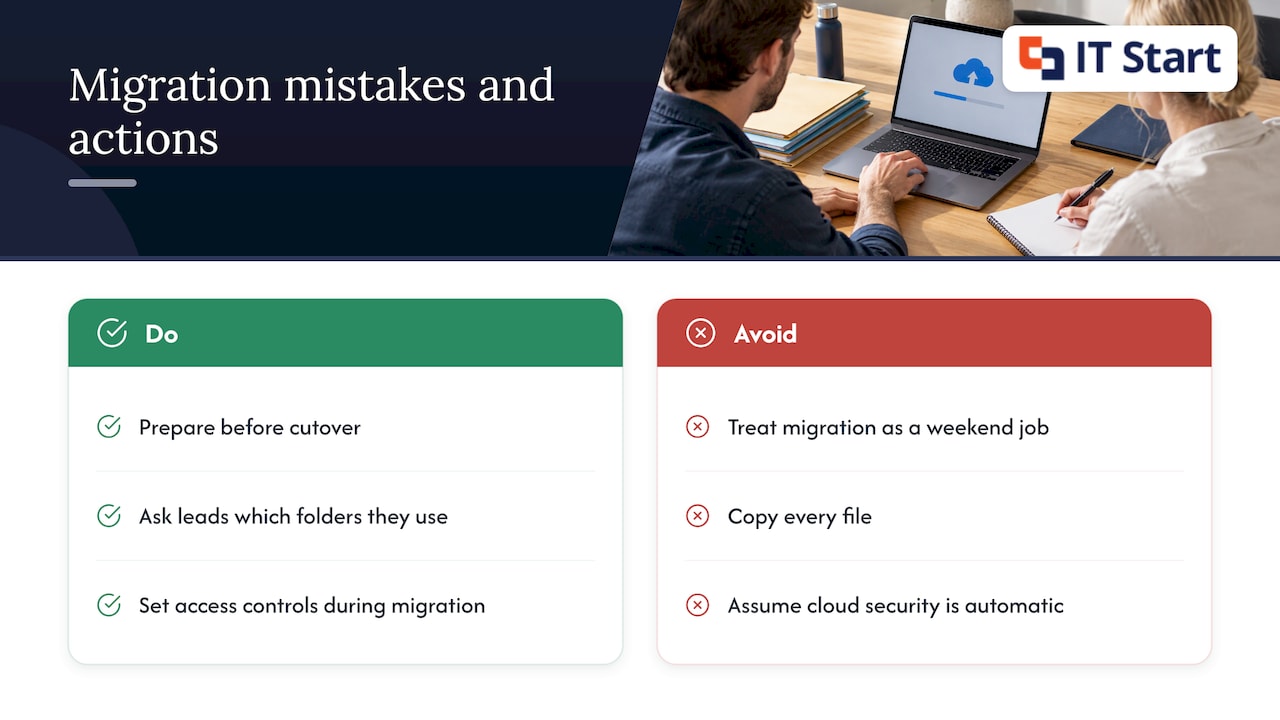
The first is treating migration as a weekend job. The cutover weekend is the short part. The preparation before it and the tidy-up after it take the time. Businesses that skip the preparation spend the following month fixing missing shared mailboxes and broken printer scan-to-email.
The second is copying everything across. A file server that has been running for ten years holds a lot of things nobody needs. Moving all of it means paying to store, sync and secure it again. Before migrating, ask each team lead to name the folders they actually use, and archive the rest.
The third is assuming the cloud looks after itself. Microsoft secures its data centres. It does not decide who in your business can see the payroll folder, or whether multi-factor sign-in is on. Those settings are yours, and they need to be set during migration, not months later.
Where the data and reality do not match
Vendor material often says migration is quick and low-effort, and for a single mailbox that is true. For a whole business, the tool that copies the data is a small part of the work. The real effort is deciding what to move, fixing permissions that have drifted over years and getting staff comfortable with the new way of saving files. We plan around the people side as carefully as the technical side because that is where delays come from.
A migration plan in order
This is the sequence we follow for a typical business of 20 to 60 people. Your own order may differ, but the logic holds.
- Inventory. List users, mailboxes, shared mailboxes, file shares, applications, printers and anything that sends email automatically.
- Clean up. Remove accounts for people who have left. Archive old folders. Fix obvious permission problems on the file server.
- Set up the tenant. Create the Microsoft 365 environment, turn on multi-factor sign-in for every account and set a Conditional Access policy (a rule that decides who can sign in, from where and on what device).
- Prepare DNS. DNS is the address book that tells the internet where your email goes. Lower the TTL (the time other systems remember your old address) a few days ahead so the switch takes effect quickly.
- Pilot. Move two or three willing staff first. Check email, calendar, shared mailboxes and file access on their real devices.
- Migrate in batches. Move mailboxes and files in groups, with staff told in plain language what changes on their screen.
- Cutover. Update the DNS records, confirm mail is flowing both ways and reconnect devices.
- Review. Check access, backups and security settings, then retire the old server only when you are sure nothing still depends on it.
We keep longer versions of this in our cloud migration checklist for Brisbane businesses and our guide to cloud migration steps. If your main move is email and Office, our Microsoft 365 migration service covers exactly that.
Do not forget the website
If your website moves hosts at the same time, treat it as its own project. Changing hosting without mapping old addresses to new ones can drop your pages out of Google. A website migration SEO checklist is worth reading before anyone touches the web server.
Protecting your data and meeting Australian requirements
This is the part owners worry about most, and the rules are simpler than they seem.
Under Australian Privacy Principle 11.1, an organisation that holds personal information must take reasonable steps to protect it from unauthorised access, disclosure or loss. Dentons explains that this applies whether the data sits in an Australian data centre or overseas.
Two more points matter for most small businesses:
- Businesses with annual turnover of $3 million or less are generally exempt from the Australian Privacy Principles, but there are exceptions, including health service providers and businesses trading in personal information, according to Norton Rose Fulbright. If you run a medical or allied health practice, assume the rules apply to you.
- Using a cloud provider does not outsource your responsibility. The same source notes that under APP 8 and section 16C of the Privacy Act, an organisation stays accountable for a breach by an overseas cloud provider as if it were its own.
In plain terms: pick services you can explain, know where your data is held, and set access controls yourself. For the practical steps, see our guide on how to secure data in the cloud.
On standards, frameworks such as the Essential Eight and SMB1001 give you a sensible checklist for security habits: multi-factor sign-in, patching, tested backups and limiting admin rights. Use them as a guide while you plan. A migration is a good moment to put those habits in place because you are touching every account anyway. Our cyber security service page explains how we approach this.
What it costs and what to budget for
The licence fee is the visible cost. The less visible ones decide whether the project runs over.
- Preparation: the inventory and clean-up. This is time, and it is the best money in the project.
- Migration labour: moving mailboxes and files, plus the cutover itself.
- Licences: Microsoft 365 plans are per user, and you should match the plan to what each person needs. A person who only reads email in a browser rarely needs the same plan as your finance lead.
- Connectivity: a better internet plan or a backup connection if the audit shows a gap.
- Training: an hour with your team on where files now live saves many support calls.
- Backup: Microsoft 365 keeps your data available, but a separate backup of mailboxes and SharePoint is still sensible for recovery from accidental deletion.
For one-off projects, our Business IT Support is charged from $145 an hour ex GST. We are happy to give you a scoped estimate after a short assessment so you are not guessing.
Where is it not worth paying? Do not pay to migrate data nobody opens. Do not buy top-tier licences for everyone by default. And do not pay for a hosted Azure server to run software that has a perfectly good cloud version.
Our view: migrate in stages and keep ownership
We have a firm opinion on this. Start with email and files, because the risk is low and the benefit is felt by every person in the business. Put multi-factor sign-in and a Conditional Access policy in place on day one, not as a later project.
We also think businesses should keep control of their own tenant. You should know who your administrators are, and you should be able to see what has been set up. A good managed IT partner works openly alongside you, in plain language, and does not hide the settings.
Where we differ from some providers is the pace. We would rather run a two-person pilot and a quiet week than a big-bang cutover that looks impressive on a schedule. Proactive care after the move, such as patching, backup checks and account reviews, is what keeps a cloud environment healthy. That routine is the reason our clients tend not to think about their IT much, which is the aim.
Our Brisbane team handles Microsoft 365, Azure and cloud migration for businesses of 5 to 100 people, and we explain every step before we take it.
IT Start
What to test and monitor after the move
The project is not finished at cutover. AWS’s migration guidance describes a post-cutover stage in which the team monitors service metrics such as availability, security and traffic patterns. It also describes a warranty period, typically one day to one week, in which business continuity and disaster recovery elements are validated. The guidance is written for larger AWS projects, but the habit applies to any business: hold a short, defined period where problems are expected and someone owns fixing them.
For a small business, our own list after cutover looks like this:
- Send and receive test emails with outside addresses, and check that nothing lands in junk.
- Confirm shared mailboxes and calendars open for the right people.
- Check that scanners, accounting software and websites still send email.
- Open files from a laptop at home and from the office, and watch the sync status.
- Restore a single deleted file and a single deleted email from backup. A backup that has never been restored is only a hope.
- Review who has admin rights and remove any that are no longer needed.
- Ask staff what is slower or different. They will notice things your monitoring does not.
We do a second check a few weeks later. By then people have settled into new habits and the less obvious problems have shown up.
How we can help
If you want a second pair of eyes before you commit, we offer a free consultation or project assessment for Brisbane businesses. We look at your internet, your licences, your applications and your data, then give you a plain-language plan. Our team is based on Eagle Street in the city and works with businesses across the Southside and from the Sunshine Coast to the Gold Coast. See our cloud services page, or look at our Azure and cloud migration service for larger moves.
FAQ
How long does a cloud migration take for a small business?
It depends on how much data you have and how tidy it is. Email and files for a small team can move in a short project, while applications that need rework take longer. We plan around your trading rhythm and avoid cutting over at your busiest time. The clean-up beforehand usually decides the schedule more than the copying does.
Do I need to keep my data in Australia?
The Privacy Act does not by itself require Australian storage. It does require reasonable steps to protect personal information, and you stay accountable if an overseas provider has a breach, as Norton Rose Fulbright explains. Some clients choose Australian regions anyway for contract or client reasons. Ask us and we will check what your agreements say.
Do I still need backups if I use Microsoft 365?
We recommend yes. Microsoft keeps the service running, but a separate backup gives you a way back from accidental deletion or a compromised account. Test a restore after setup so you know it works.
Is my internet good enough for the cloud?
Check your upload speed at a busy time and see what your provider can offer. nbn notes that cloud use calls for a reliable connection with fast upload speeds. If the office cannot work without internet, consider a second connection as a fallback.
What can I leave out of a migration?
Old files nobody opens, accounts for people who have left and software that has no future. Archive these instead of paying to move and secure them again.
Sources
- Fly high in the cloud: a guide for small businesses (nbn)
- Data centre series: implications of data security (Dentons)
- From tall tales to truth: 10 privacy myths we still hear (Norton Rose Fulbright)
- Post-cutover stage (AWS Prescriptive Guidance)