
The single most important thing you can do this week is turn on multi-factor authentication using an authenticator app, not SMS. After that, get a password manager rolling and stop reusing passwords. Then train yourself to pause on any urgent request for money, credentials or system access, no matter who it looks like it’s from. Everything else on this list supports those three moves.
TL;DR:
- Enabling multi-factor authentication with an authenticator app is critical, as SMS codes are vulnerable to interception and SIM swapping.
- Using a password manager and rotating high-risk accounts to authenticator apps or security keys greatly reduces risks from breaches and credential theft.
- Always verify sender domains, hover over links before clicking, and deny unexpected MFA prompts or requests for money or access through a separate channel.
- Regularly test backups and enforce quarterly access reviews to prevent privilege creep and ensure data protection.
- Short, frequent training combined with phishing simulations and clear reporting procedures significantly improve employee incident response.
Table of Contents
- Cyber security tips for employees: the 10 that matter most
- How to spot phishing and social engineering at work
- Secure remote work: devices, networks and meeting hygiene
- Training, reporting and manager actions that actually move the needle
- What we see as an MSP: common mistakes and pragmatic fixes
- Quick checklist: what every employee should do this week
- Recognising and reporting security incidents promptly
- Why data privacy and handling sensitive information matters at work
- Guidelines on social media security and sharing policies
- The honest take on cyber security tips for employees
- How IT Start helps you put these tips into practice
- Sources
- FAQ
Cyber security tips for employees: the 10 that matter most
We go into a lot of Brisbane offices for the first time and see the same gaps. No MFA on the finance inbox. Multiple people sharing one admin password written on a sticky note. Honestly, it’s rarely dramatic. It’s just neglect that’s built up over years. Here’s the list we’d actually hand an employee on day one.
- Use a password manager. Stop reusing “Company2024!” across four systems. A password manager generates and stores long, unique passphrases for every login, so a breach on one site doesn’t cascade into your email, your CRM and your bank portal.
- Turn on MFA everywhere it’s offered. This one control blocks the overwhelming majority of account takeover attempts we see in client incidents.
- Prefer authenticator apps or security keys over SMS. SMS codes can be intercepted or SIM swapped. Authenticator apps and physical keys like YubiKeys are far more resistant to phishing and credential theft.
- Check the sender domain before you click anything. Hover over links to see the real destination. If an MFA prompt pops up that you didn’t trigger, deny it, and change your password.
- Lock your screen when you walk away, every time. Enable full disk encryption on laptops. A stolen laptop with no encryption is a data breach, not just a hardware loss.
- Keep your OS and apps updated. Turn on automatic updates and stop hitting “remind me tomorrow” for three weeks straight. Unpatched software is still one of the easiest ways in.
- Back up your work files and actually test the restore. A backup nobody’s tested is a guess, not a plan.
- Keep work and personal accounts separate. Don’t sync your work OneDrive to a personal laptop or forward client emails to your Gmail “just to be safe.”
- On public Wi-Fi, use the company VPN or your phone’s hotspot. Café Wi-Fi is fine for browsing news, not for logging into your payroll system.
- Don’t install software IT hasn’t approved, and report anything odd immediately. A random Chrome extension or a “free PDF converter” is how a lot of malware gets a foothold.
Pro Tip: Write your incident reporting contact on a sticky note on your monitor. When people panic, they forget the process. A visible reminder gets suspicious emails reported in minutes instead of hours.
How to spot phishing and social engineering at work
Every phishing email we’ve ever pulled apart for a client uses the same four levers: authority (pretending to be the CEO or a bank), urgency (“action needed within 1 hour”), emotion (fear of getting in trouble), and scarcity (“final notice”). Once you know the pattern, it’s obvious. Before that, it isn’t.
A few checks take less than thirty seconds:
- Look at the reply-to address, not just the display name. “CEO Name” can mask an address that’s nothing like the real one.
- Hover over every link before clicking to see where it actually goes.
- Never approve an MFA prompt or read out a code you didn’t request, even if the caller sounds legitimate.
- If a request involves money, credentials, or access, stop and verify through a separate channel.
Run this script before you action anything unusual: stop, call the person on a known number (not one from the email), and confirm through a ticket or in person before you pay an invoice or reset an account.
Business email compromise scams cost businesses real money precisely because employees skip this step under time pressure. ASD’s personnel security guidelines specifically call out training staff to recognise and report these attempts as a core control, not a nice-to-have.
Secure remote work: devices, networks and meeting hygiene
Remote work didn’t create new risks so much as it exposed ones that used to be hidden behind an office firewall. The basics still apply, they just need to travel with you.
- Use a company VPN, or tether to your phone’s hotspot, whenever you’re on public or unknown Wi-Fi.
- Keep work accounts separate from personal ones and turn off automatic file sync where you can.
- For video calls, use meeting passwords and waiting rooms, and keep your conferencing app updated. Uninvited guests in a client call are more common than you’d think.
- Before you travel, talk to IT about the device you’re carrying. Enable encryption, and if you suspect it’s been tampered with, a factory reset on return beats hoping it’s fine.
Our remote work security guide covers device-level lockdown in more detail if you manage a distributed team.
Training, reporting and manager actions that actually move the needle
Annual training modules that everyone clicks through on autopilot don’t change behaviour. What works is short and frequent: monthly micro-lessons, plus a quarterly scenario specific to each role, because the finance team faces different attacks than the warehouse team does.
- Run phishing simulations regularly, and make them non-punitive. Coach clickers immediately instead of naming and shaming them in an all-staff email.
- Managers should schedule access reviews every quarter and enforce least-privilege access, especially after someone changes role or leaves.
- Give staff one obvious reporting channel, and track how many people use it and how fast.
Role-based training with clear reporting steps is exactly what ASD’s guidelines for personnel security recommend, and it’s the difference between staff who freeze and staff who act.
Pro Tip: Track median time to report a suspicious email as a KPI, not just training completion rates. A business that hears about a compromised account in 10 minutes has a very different outcome to one that hears about it three days later.
What we see as an MSP: common mistakes and pragmatic fixes
Privilege creep is everywhere. We regularly find former staff, contractors from a project two years ago, or people who changed roles, still holding access they never needed to keep. It’s not malicious, it’s just nobody cleaned it up.
- Run access reviews every time someone changes role, not once a year on a spreadsheet nobody opens.
- Backups exist in most businesses we onboard, but they’re rarely tested. We’ve seen clients discover their “backup” hadn’t run successfully in months, right when they needed it.
- MFA is often set up, but on SMS only. Push high-risk accounts (finance, admin, email) to authenticator apps or FIDO2 keys.
- Training helps, but it won’t stop everything on its own. Pairing it with technical controls like filtering and least privilege is what actually holds against modern, AI-assisted phishing.
Quick checklist: what every employee should do this week
Print this out or paste it into your team chat.
- Set up MFA on your key accounts and get a password manager installed.
- Install any pending updates and confirm your device has encryption turned on.
- Run a backup of your work files, and confirm with IT that a restore actually works.
- Find one suspicious email in your junk folder and report it to your security contact, just to practise the process.
| Action | Time needed | Owner |
|---|---|---|
| Enable MFA (authenticator app) | 10 minutes | Employee |
| Install password manager | within the hour | Employee |
| Confirm device encryption | 5 minutes | IT / employee |
| Test one backup restore | 20 minutes | IT |
| Report a suspicious email | 5 minutes | Employee |
Recognising and reporting security incidents promptly
Most incidents don’t announce themselves. It’s a login from a country you’ve never visited, a colleague asking why you sent them a weird link, or a file that’s suddenly encrypted with a ransom note attached. The businesses that recover fastest are the ones where someone noticed something odd and said something within the hour, not the ones with the fanciest firewall.
The reporting step is where most SMBs fall down. We ask new clients “who do you tell if you think you’ve clicked something dodgy?” and get blank stares more often than a clear answer. That gap is fixable in an afternoon: pick one contact or channel, put it somewhere visible, and tell everyone that reporting early is never the wrong call, even if it turns out to be nothing.
Speed matters more than certainty. If you think an account might be compromised, change the password and report it before you’ve confirmed anything. A false alarm costs five minutes. A ransomware attack that spreads for six hours because nobody flagged the first sign costs a lot more. ASD’s guidance on personnel security specifically ties training to clear reporting procedures for exactly this reason, because a well-trained employee who doesn’t know who to call is still stuck.
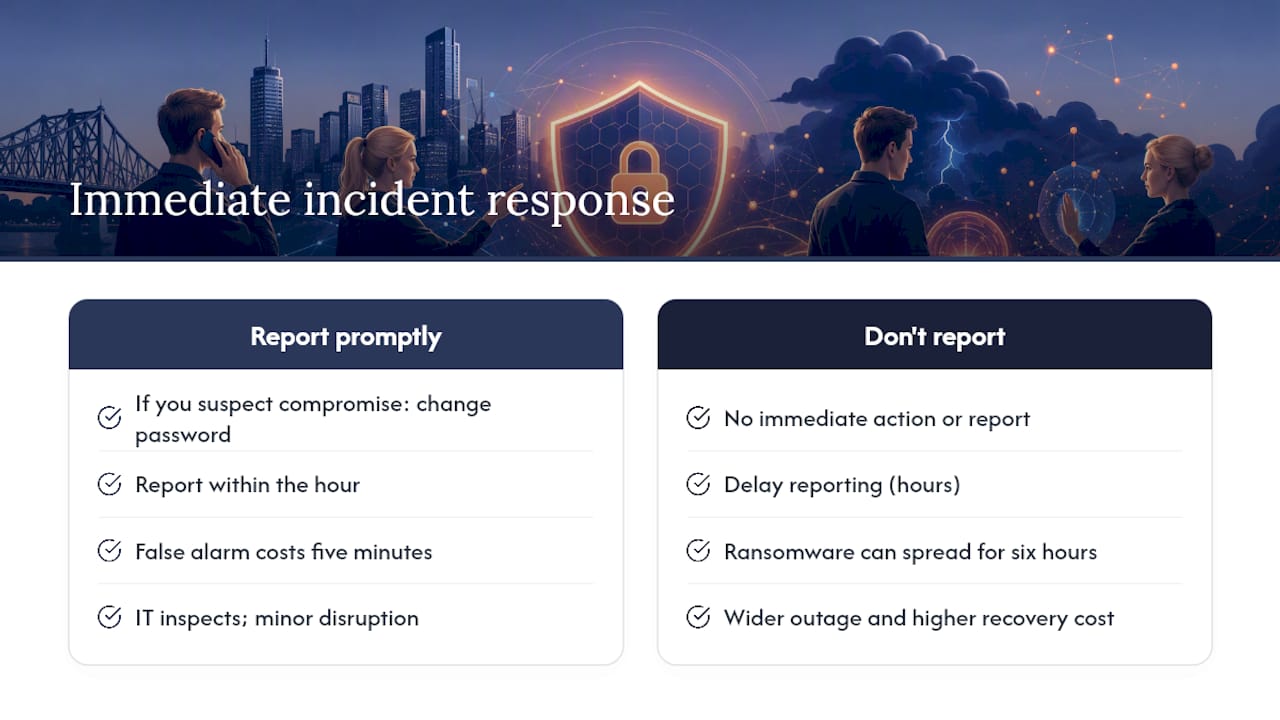
If you’re not sure whether something counts as reportable, report it anyway. IT would rather look at ten false alarms than miss the one real one.
Why data privacy and handling sensitive information matters at work
Every business holds data that would hurt someone if it leaked. Client contact details, payroll records, health information, financial documents. Handling this properly isn’t just a compliance checkbox, it’s the difference between a minor scare and a breach notification you have to send to every affected client.
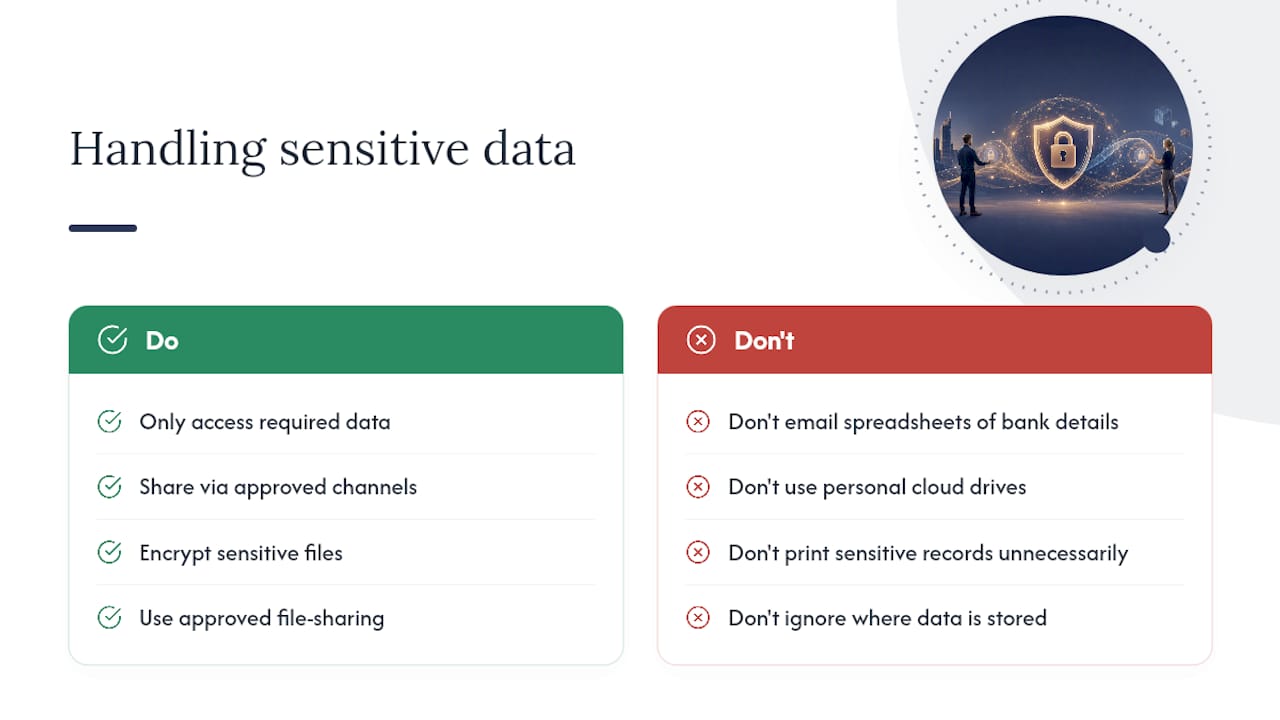
The basic rule is simple: only access data you actually need for your job, and only share it through channels approved for that purpose. Emailing a spreadsheet of client bank details because it’s quicker than using the proper system feels harmless until that email gets forwarded, misdirected, or sits in an inbox that later gets compromised.
Encrypt sensitive files, use approved file-sharing tools rather than personal cloud drives, and think twice before printing anything that shouldn’t leave the building. For businesses in regulated industries like healthcare, legal or financial services, this isn’t optional. It’s tied directly to compliance obligations, and a mishandled record can mean real regulatory exposure on top of reputational damage.
The FTC’s small business cybersecurity guide puts it plainly: limit who can access sensitive data, and know exactly where it lives. If you can’t answer “where is our client data stored and who can see it”, that’s the first gap to close.
Guidelines on social media security and sharing policies
What staff post publicly can undo a lot of good security work elsewhere. A LinkedIn post announcing “excited to start my new role in finance at [company]” is small talk to the person posting it, and a targeting list to an attacker building a business email compromise scam.
Set a simple house rule: don’t post details about internal systems, org charts, security tools in use, or upcoming projects before they’re public. Attackers use this information to make phishing emails feel personal and convincing, referencing a real colleague’s name or a real project to lower your guard.
Personal social media matters too. Oversharing travel plans in real time tells people exactly when your desk, and your devices, are unattended. It’s not about locking staff out of having a life online, it’s about being aware of what a stranger could do with the details you’re sharing freely.
If your business runs official social accounts, keep the login behind MFA and limit posting access to people who actually need it. We’ve seen shared social logins sitting in old, unused email accounts for years, completely unmonitored. That’s an easy account for someone to take over quietly.
The honest take on cyber security tips for employees
Most advice in this space is either too vague to act on (“be vigilant”) or too technical for anyone outside IT to use. Neither actually changes behaviour. What works is specific, boring, repeatable habits: MFA on, password manager installed, backups tested, one clear reporting channel.
The conventional wisdom oversells annual training and undersells access reviews. A once-a-year module that everyone forgets by March does far less than a quarterly check on who still has access they shouldn’t. If you’re a manager reading this wondering where to start, start there, not with another slide deck.
Training and technical controls aren’t competing priorities. Training without enforced MFA and filtering is fragile. Technical controls without trained staff still get bypassed by a convincing phone call. You need both, and most businesses we work with have neither properly in place, which is exactly why the basics on this list matter more than anything flashy.
— Matt
How IT Start helps you put these tips into practice
Reading a checklist is one thing. Actually rolling out MFA across forty staff accounts, choosing a password manager, and confirming your backups genuinely restore, that takes time most SMBs don’t have spare. IT Start is the option for Brisbane businesses that would rather have someone implement this properly than chase it themselves between other jobs.
We run managed security services, including MFA rollouts, endpoint protection and risk assessments, alongside role-based staff training and backup verification, so the gap between “we think we’re covered” and “we actually are” gets closed. The team holds industry certifications and works locally with businesses across financial services, healthcare, legal and professional services, industries where a compliance gap is expensive.
If you’re not sure where your business actually stands, start with a free security assessment and we’ll tell you plainly what needs fixing first.
Sources
FAQ
What are the top cyber security tips for employees?
Turn on MFA using an authenticator app, use a password manager with unique passphrases, keep devices updated, back up files and test restores, and pause to verify any urgent request for money or access.
What are the 10 recommended tips for cyber security?
Password manager, MFA on every account, spotting phishing red flags, device locking and encryption, patching, tested backups, separate work accounts, VPN on public Wi-Fi, avoiding unauthorised software, and prompt incident reporting.
What are the 5 C’s of cyber security?
Definitions vary across sources, so there’s no single agreed list. Rather than rely on a catchy acronym, focus on the practical basics: MFA, patching, backups, passphrases and reporting, which is what ASD’s own guidance recommends.
What are the top 5 tips for cyber security?
Enable MFA with an authenticator app, use a password manager, keep software updated, back up and test restores, and verify unexpected requests before acting on them.
How often should employees do security training?
Short monthly micro-lessons paired with quarterly role-specific scenarios work better than a single annual session, particularly for staff in finance or admin roles who face targeted attacks more often.