

Start with MFA, a password manager or passkeys, automatic updates and backups you have actually tested. Those moves cover much of what the Essential Eight and the ACSC push small businesses towards first. Do the first one today, then work down the list. If your setup is messy, IT Start can sort it with you.
TL;DR:
- For critical accounts, use passkeys or security keys, disable password fallback where possible, and keep a spare; SMS remains vulnerable to SIM swapping.
- Back up Microsoft 365, system configurations, and files to offline or immutable storage, then restore real files, mailboxes, and machines several times each year.
- Verify every new or changed payment detail by calling a known number, never a number or link supplied in the request, even when urgent.
- Add EDR when the business holds client data, uses Microsoft 365 across the business, or faces compliance rules, but assign someone to monitor its alerts.
Table of Contents
- How do you protect your accounts with passkeys, MFA and a password manager?
- How should you keep devices and software patched and protected?
- How do you build backups that actually restore?
- How do you spot phishing and business email compromise?
- Who should have admin access, and how do you protect it?
- How do you lock down remote access, RDP and VPNs?
- What should you log, and what should raise an alert?
- How do you get staff on board with policies and training?
- What do you do if something goes wrong?
- What mistakes do we see most often as an MSP?
- An MSP’s honest view on getting this done
- Want a hand getting these fixes done properly?
- FAQ
- Sources
How do you protect your accounts with passkeys, MFA and a password manager?
Accounts are where most small business break-ins start, so this is where we start too. The ACSC says to stop trying to memorise passwords. Use a password manager to generate and store long, unique ones, or use passkeys, and protect the manager with MFA and a strong master passphrase.
Passkeys deserve your attention. They give you phishing-resistant login, so a fake sign-in page cannot trick you into handing over anything useful. Where you adopt them, switch off the password fallback (otherwise an attacker just uses the old door) and keep a backup, such as a second FIDO2 key. For admins and anyone with access to money, a hardware security key is the best choice. SMS codes are better than nothing, but advanced attackers go after helpdesk staff and use push bombing and SIM swapping to get around them, which is why the ACSC leans towards phishing-resistant MFA such as security keys.
Honestly, the password manager itself is where we see the sloppiest work. A good password manager must be reputable, encrypt your data and support MFA, and its master password must be long and unique. Here is the order we use with clients:
- Pick one reputable manager and roll it out to everyone, not just the boss.
- Turn on MFA for the vault itself, ideally with a passkey or security key.
- Import the high-value accounts first: Microsoft 365, banking, payroll, domain registrar.
- Review what is saved, delete the dead logins and replace anything reused.
- Set a long passphrase for the master login that you have never used anywhere else.
Pro Tip: Pick a master passphrase made of four or five unrelated words, then write it on paper and keep it in a safe. A sticky note under the keyboard is not a safe.
What we see in practice: a vault left unlocked on a shared reception PC, one shared vault login passed around the whole team, and no MFA on the manager at all. Each of those turns your best tool into a single point of failure. Sort the vault first, then everything else gets easier.
How should you keep devices and software patched and protected?
Updates are boring, which is exactly why they get skipped. Turn on automatic updates for every endpoint and server, and pick an out-of-hours patch window where you can. The ACSC lists updating software among its starting measures, and patching both applications and operating systems is part of the Essential Eight.
Here is what we do and recommend:
- Switch on automatic updates for Windows, Microsoft 365 apps, browsers and firmware.
- Schedule reboots after hours so nobody postpones them for a month.
- Keep a simple asset list: what the device is, who uses it, and when it was bought.
- Replace or isolate anything that no longer receives security updates. An old Windows 10 PC with no fixes should not sit on the same network as your accounts system.
- Check the forgotten devices: NAS boxes, printers, routers and the camera system.
We see this a lot: a business delays Windows updates for “stability”, then an incident lands months later on a known flaw that had a fix sitting there the whole time. The other classic is the unpatched NAS in the cupboard. Nobody owns it, nobody logs into it, and it holds the shared drive. The ACSC also tells organisations to replace legacy technology and choose secure-by-design products, and that is advice we would sign.
On endpoint protection, standard antivirus catches the known stuff. Endpoint detection and response (EDR) adds visibility into what a device is actually doing, and the ability to isolate it fast when something looks wrong. You do not need it on a three-person team with nothing sensitive. Once you hold client data, run Microsoft 365 for the whole business, or answer to compliance rules, we say it is necessary. It is not magic, though. EDR with nobody watching the alerts is just an expensive logo on the taskbar.
How do you build backups that actually restore?
Backups are where the gap between belief and reality is widest. Many clients tell us they are backed up. When we ask for a restore, the backup turns out to have failed weeks ago. The ACSC’s technical guidance on regular backups says backups should be offline or on separate storage, tested regularly, and cover data, software and configuration settings.
Cover more than just files. Include server configurations, key system state and your Microsoft 365 setup, because rebuilding a tenant from memory takes days. Microsoft 365 is the one people get wrong most. Its built-in retention is not a backup, and third-party backup is usually needed. If you want a plain-language run-through of the options, Microsoft 365 backup options lays them out well. Whatever tool you choose, the backup account itself must authenticate with modern methods such as MFA. A backup login protected only by a weak password is an open invitation for ransomware crews.
Keep one copy offline or immutable so attackers cannot encrypt or delete it, and restrict who can reach it. The ACSC small business guide names offline backups and restore testing as core ransomware mitigations.
Run this restore test at least a few times a year:
- Pick a real file, a real mailbox and one full machine or server to restore.
- Restore to a separate location, not over the live data.
- Open the restored files and confirm they work and are current.
- Time the whole job and write the number down.
- Fix anything that failed, then record the date of the test.
Pro Tip: A green tick in the backup dashboard only tells you the job ran. It says nothing about whether you can recover. Only a restore proves that.
The pitfalls we meet most are backups that quietly fail, backup accounts with weak authentication, and a single copy sitting on the same network as the thing being protected. If your last restore test was never, today is a good day to schedule one.
How do you spot phishing and business email compromise?
Business email compromise (BEC) is a money problem more than a technology problem. The ACSC flags it as a high financial risk and says you need a verification process that is not optional: any change to banking details gets confirmed by phone on a number you already know, or face to face. Property settlements are a current target, and the ACSC has observed property-related BEC in Australia and recommends verifying payment details, training staff and securing email with strong passphrases and MFA.
The pattern is almost always the same. An email arrives that looks like it is from a supplier, a solicitor or your own boss. It is urgent, slightly unusual, and asks for a payment or a changed bank account. Sometimes the attacker is inside a real mailbox and replying in a real thread, which is what makes it so convincing. With deepfakes, a voice note or video can be faked too, so the AFP’s warning about AI-generated media is a reason to verify through a second channel, whatever the format.
What helps, in rough order:
- Make verbal confirmation mandatory for any new or changed payment detail, no exceptions for “urgent”.
- Set up SPF, DKIM and DMARC on domains you control, as the ACSC’s BEC guidance recommends.
- Add an external sender banner so staff can see when a message comes from outside.
- Check the sender domain letter by letter, since lookalikes swap in one character.
- Never enter credentials on a page you reached from an email. Open the site yourself.
- Where practical, strip live hyperlinks from inbound email so staff have to navigate on their own.
Give staff a script they can read out. Something like: “Thanks, I will call you back on the number we have on file to confirm the new account before paying.” It sounds awkward the first time. It also stops the fraud, and a real supplier will not mind. Our view is that a polite delay costs you nothing, while a wrong payment can cost you the month.
Who should have admin access, and how do you protect it?
Most small businesses have too many admins and no list of who they are. The fix is least privilege: people get the access their job needs and nothing more. Daily accounts should never be admin accounts. Anyone who does admin work gets a separate account for that, used only for those tasks.
- Keep everyday accounts non-admin, including the owner’s. We know that one hurts.
- Use separate admin accounts with no mailbox and no web browsing.
- Protect privileged accounts with phishing-resistant MFA, ideally a hardware key.
- Keep one or two break-glass accounts with long passwords stored offline, excluded from normal sign-in policies and tested occasionally.
- Use Microsoft’s Local Administrator Password Solution (LAPS) so every PC has its own rotating local admin password rather than one shared across the fleet.
- Rotate service account credentials, and use long random passwords for them.
If you run Active Directory, the ACSC’s guidance on detecting and mitigating Active Directory compromises recommends protecting privileged access, using privileged access workstations, enforcing phishing-resistant MFA and mitigating Kerberoasting with group managed service accounts or long service account passwords. That sounds heavy for a small firm, and the full version often is. The principle scales down fine, though: fewer admins, separate accounts, strong sign-in.
What we see in practice is the “temporary” admin account for a contractor that is still active two years later, and the director whose everyday login can change anything. Do a quick audit this week. List every admin, ask why each one needs it, and remove the ones nobody can answer for.
How do you lock down remote access, RDP and VPNs?
Do not expose Remote Desktop Protocol (RDP) to the internet. Ever. It is one of the most reliable ways for attackers to find you, because automated scanners are probing for it constantly. If you truly need RDP, put it behind a VPN or an approved remote desktop gateway and enforce MFA on the way in.
- Close inbound RDP at the firewall and check it from outside, not just in the settings.
- Require MFA on every VPN and remote gateway login.
- Keep a list of approved remote access tools and remove everything else. We regularly find three or four on a single network, installed by past suppliers.
- Block common remote tool ports at the perimeter so unapproved tools cannot phone home.
- Review edge devices such as firewalls, VPN appliances and routers for exposure and patch them promptly. The ACSC reiterates reviewing edge device exposures as part of basic hygiene.
Then there is the older stuff. Legacy NTLM does not support MFA and is a major risk. Where you cannot switch it off, the ACSC points to LDAP channel binding and SMB signing as mitigations. Turn those on, and put “retire NTLM” on the project list rather than the wish list.
Segment the network while you are at it. Guests, cameras and smart devices belong on their own VLAN, away from the machines that hold your finances. Keep firewall rules tight and review them when staff or suppliers change. A flat network means one infected laptop can see everything, and we have cleaned up after that scenario more than once.
What should you log, and what should raise an alert?
You cannot respond to what you cannot see. The ACSC’s advice for organisations is to assume compromise and focus on logging, and for small teams that does not mean a giant security operations centre. It means a short list done properly.
- Turn on sign-in and admin audit logs in Microsoft 365 and any other key cloud service, and keep them long enough to be useful.
- Act on risky sign-in alerts: logins from odd countries, impossible travel, or a new device at an unusual hour.
- Keep firewall logs and cloud audit logs somewhere central, even if the setup is basic.
- Consider affordable EDR for endpoints, with someone actually watching it.
- Set alerts for new admin accounts, changes to admin roles, mass file deletions, forwarding rules created on mailboxes, and repeated failed logins.
Mailbox forwarding rules deserve a special mention. In a BEC attack, one of the first things an intruder does is create a hidden rule that copies or deletes mail. An alert on that single event has saved clients real money.
Where data and reality do not match: plenty of businesses tell us they have logging because the setting is technically on. Then we ask who reads it, and the answer is nobody. Logs that nobody reviews still help after an incident, since they tell you what happened. But alerts to a person who will act are what shorten the damage. Start with alerts that matter, make sure they reach a real inbox or phone, and grow from there.
How do you get staff on board with policies and training?
Security policy fails when it is a lengthy document nobody opens. Keep it short, put it where staff can find it, and tie it to jobs people do. The ACSC and the ISM both say training should be tailored to different user roles, with clear reporting procedures for suspicious contacts. Accounts staff need different examples from reception.
The ACSC guide also stresses user vigilance and tailored awareness training, and our own cyber security awareness tips for Australian SMEs go deeper on the habits that stick. A rhythm that works without drowning anyone:
- Run a short refresher regularly, built around a real scam someone nearly fell for.
- Send occasional phishing simulations aimed at job roles, and treat clicks as coaching, never punishment.
- Write down the payment verification steps, one page, and pin it where finance staff will see it.
- Make reporting easy: one email address or button, and thank people who use it, even for false alarms.
- Run access reviews regularly and use an offboarding checklist so former staff lose every login on their last day.
Offboarding is the one that bites. We find ex-employees still sitting in Microsoft 365, shared mailboxes and the accounting package long after they have left. It costs nothing to fix and it closes a real hole. If you want a ready-made list for the basics, our cyber hygiene checklist is a decent starting point. Honestly, culture beats policy. If staff feel safe reporting a mistake promptly, you have solved half the problem.
What do you do if something goes wrong?
Stay calm, move quickly, and do things in the right order. Panic leads to wiped evidence and extra damage. This is the short version we hand to clients.
- Isolate affected devices from the network by unplugging the cable or turning off Wi-Fi. Do not switch them off unless told to, as memory can hold useful evidence.
- Preserve logs and screenshots before anything gets cleaned up.
- Change credentials from a clean device, starting with admins, email and banking.
- If money moved, call your bank straight away and ask for a recall.
- Report the incident through official channels such as ReportCyber and use the ASD ransomware guidance.
- Call your MSP early, so evidence is preserved and recovery is faster.
Have a written plan before you need one. The ACSC recommends incident response planning as part of basic cyber hygiene, and the Scattered Spider advisory recommends strong monitoring and detection and response planning. A one-page playbook with phone numbers beats a perfect plan nobody can find at 2 am.
Pro Tip: Test your restore before you decide how to recover. Restoring from a backup that was already compromised, or that never worked, wastes the one chance you have.
Do not rush to wipe machines to “make it go away”. You lose evidence you may need for insurers, for regulators and for working out how they got in. Pause and write down what you saw and when.
What mistakes do we see most often as an MSP?
The same few problems show up in almost every new client. None of them need clever tools. They need someone to take a day and fix them.
- Untested backups. The business assumes backups exist and has never restored anything. Fix: run the five-step restore test above this month and book the next one.
- SMS MFA and reused passwords. Text codes get intercepted and the same password sits behind banking and email. Fix: move critical accounts to an authenticator app, passkey or security key, and put a password manager in place.
- Too many admins. Old contractor accounts, shared logins and owners who use admin all day. Fix: list every admin, remove what nobody can justify and split daily and admin accounts.
- Unmanaged remote access. Forgotten remote tools and an RDP port someone opened years ago. Fix: audit what is reachable from the internet and close or gate it.
- Nobody owns it. The NAS, the router and the old server belong to nobody. Fix: name an owner for every device and set a review date.
Here is the uncomfortable part. Surveys and campaigns show people are doing better, with the Government’s Act Now. Stay Secure. campaign linked to more MFA and unique passwords. But in the businesses we walk into, the basics are still patchy. Awareness has moved faster than implementation. Knowing you should have MFA and actually having it on every account are two very different states.
An MSP’s honest view on getting this done
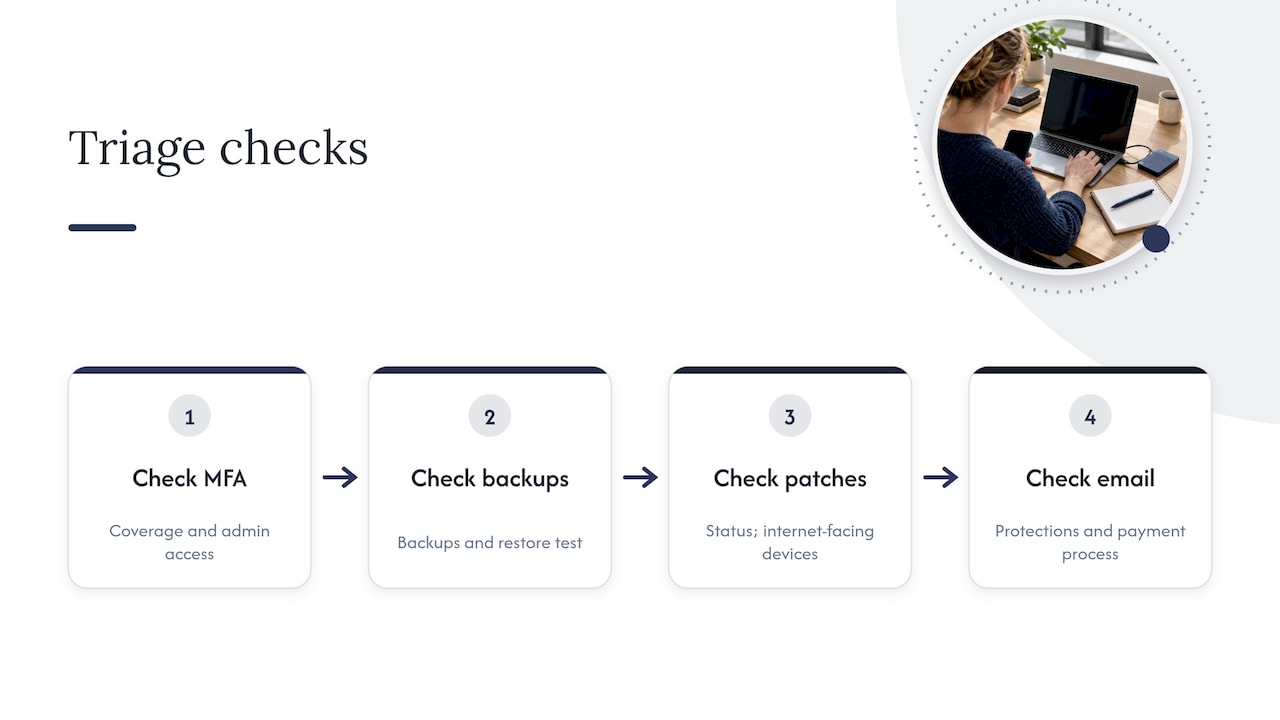
Here is how we triage a new client. First, we check MFA coverage and who has admin. Second, we look at backups and ask for a restore. Third, we look at patch status and internet-facing devices. Fourth, we check email protections and the payment process. That order is deliberate: it goes after the problems most likely to cost you money first, and it mirrors the ACSC’s advice to start with MFA, updates and backups before moving to the wider Essential Eight.
For a business of 10 to 50 staff, a sensible minimum managed security package looks like this: MFA on everything, a password manager, automatic patching, EDR with someone watching it, tested third-party backups for Microsoft 365, email authentication and filtering, and a quarterly review of admins and access. You do not need an enterprise stack. You need the basics done consistently and checked.
Call an MSP when the list feels bigger than your week, when you have no one who can restore a server, or when you have had a scare. Fix it yourself when it is a one-off: turning on MFA, installing a password manager, cleaning up your own accounts. We would rather you did those today than waited for us.
My honest take is that businesses spend too long shopping for products and too little time on discipline. A modest toolset used properly beats an expensive one nobody checks. Most of the damage we clean up was preventable with something on this page.
— Matt
Want a hand getting these fixes done properly?
If you would rather not do this alone, we can help. Our team offers a free security health check and consultation, and we work through the quick wins with you: MFA rollout, backup verification and admin cleanup. Those three alone close the gaps we see most often. Our cyber security service covers advanced endpoint protection, network security and firewall management, risk assessment and compliance, and proactive managed security. We are based in Brisbane and work with small and medium businesses across the city. Prefer to read more first? Our guide to cyber risk mitigation strategies explains how we think about priorities, and our small business cybersecurity best practices goes further on the SMB side. When you are ready, book your free health check through our contact page and we will tell you plainly where you stand.
FAQ
What are the main things in cyber security?
The core pieces are strong account protection (MFA, unique passwords or passkeys), regular software updates, tested backups, email and phishing awareness, and limiting admin access. The Essential Eight packages these into eight mitigation strategies: patching applications and operating systems, MFA, restricting admin privileges, application control, restricting Microsoft Office macros, user application hardening and regular backups.
What is the best way to get into cyber security?
Learn the fundamentals first: networking, Microsoft 365 or Azure administration, and how accounts, patching and backups work in a real business. A help desk or junior IT role is a solid way in, because you see what actually breaks. Then add security skills such as logging, email protection and incident response.
Where should a small business start with cyber security?
Start with MFA, software updates and regular tested backups. The ACSC small business guide recommends these first, then moving towards Essential Eight Maturity Level One. Together they cover the most common ways small businesses get hurt.
Is SMS multi-factor authentication good enough?
It is better than no MFA, but it is the weakest option. Attackers can target helpdesk staff and use push bombing and SIM swapping to get around it. The ACSC prefers phishing-resistant MFA such as hardware security keys where you can use them.
Sources
- Small business cyber security handbook | CGA
- Cyber
- Cyber
- Cyber
- Cyber
- Cyber
- Cyber
- Cyber
- Cyber
- Annual Cyber Threat Report 2024–25 fact sheet
- 2025 Review: Transition from Horizon 1 to Horizon 2
- Cyber
- Essential Eight Explained
- Cyber
- Cyber
- ACSC Small Business Cyber Security Guide
- ACSC reports surge in cyberattacks targeting Australia’s critical infrastructure
- AFP and Monash University poison data to combat AI-generative crime